CGM Connect
Show your glucose from the CGM Connect Widget on your watchface: the current value with its trend arrow, the time of the reading, the average of the last hour, and a chart of the last hour. CGM Connect is made by another developer (bruder_jakob) and works with Libre, Dexcom, Nightscout, xDrip+, Juggluco, Medtronic CareLink and more.
Use the CGM Connect Widget. The CGM Connect watchface and data field don't share their data with other apps. Prefer an app made for these watchfaces? See CGM+.
Set up CGM Connect
1. Install the widget and log in
Install the CGM Connect Widget and set up your CGM in its settings in the Connect IQ app on your phone. See the CGM Connect manual for your CGM.
2. Turn on sharing with watchfaces (important)
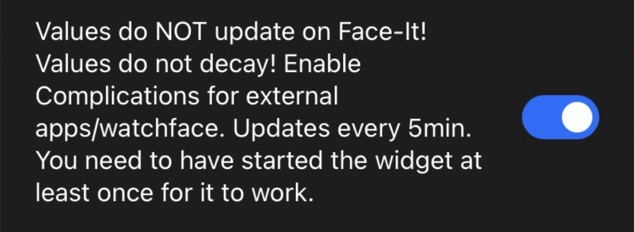
In the widget's settings in the Connect IQ app, scroll all the way down and turn on Values do NOT update on Face-It! Values do not decay! Enable Complications for external apps/watchface. Updates every 5min. Then tap Save.
Without this setting, the watchface gets no data from CGM Connect.
3. Open the widget once on your watch
Open the CGM Connect widget on your watch and wait until it shows your glucose. It only shares data after it has been started once, and again after every restart of the watch.
The first update can take up to 5 minutes. Until then the watchface shows an empty value and an empty chart. This is normal.
Show it on your watchface
In the watchface settings in the Connect IQ app on your phone:
| Setting | What it shows |
|---|---|
| A field set to CGM Connect (bruder_jakob) | Your current glucose with its trend arrow, in the unit set in CGM Connect. |
| A field set to CGM Update Time (bruder_jakob) | The time of the last reading. |
| A field set to CGM Connect 1h Average (bruder_jakob) | The average of the last hour: the 12 readings that are also in the chart. Readings CGM Connect didn't get are left out. |
| Chart set to CGM Connect Glucose | A chart of the last hour: 12 readings, 5 minutes apart, the newest on the right. Turn on Show Chart as Linechart for a line instead of bars. On watchfaces with a chart setting, like Fenix 8 - Data Dash GB. |
On watchfaces with their settings on the watch, open a field in Data and choose Data → Plugins, then CGM Connect. See Plugins.
Good to know
- CGM Connect updates the watchface every 5 minutes. After setting it up, the field and the chart can stay empty for up to 5 minutes until the first update arrives.
- --- means CGM Connect has no valid reading, for example when it lost the connection or the reading is older than 12 minutes (the show error if value is older than 12 Min setting of the widget).
- Libre doesn't always send a trend, so the arrow can be missing.
- The chart from CGM Connect only has 12 points (the last hour), because that is all CGM Connect shares. They are spread over the width of the chart, so the bars are wide. For a longer history, use CGM+.
- Gaps in the chart are readings CGM Connect didn't get.
- A field set to CGM+ GB 1h Average shows the CGM Connect average when CGM+ has no data.
- Still nothing after 15 minutes? Check the setting in step 2, open the widget on your watch again, and make sure the Garmin Connect app is running on your phone.