Time Options
Change how the time looks, with a live preview at the top of the screen.
Using the screen
Open Time options in the settings. The preview stays at the top, with the current row below it.
| To | Touch | Buttons |
|---|---|---|
| Move to another row | Tap the arrow above or the row below | UP or DOWN |
| Change the current row | Tap it | ENTER |
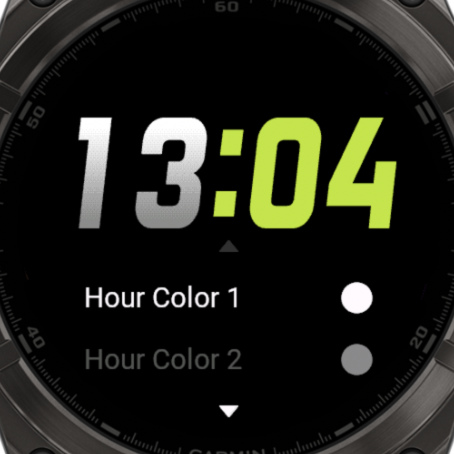
What you can change
| Row | What it does |
|---|---|
| Hour, Minute and Divider Color 1 and 2 | The colors of the time. See Colors |
| Gradient Style | How color 1 and 2 blend: No Gradient, Regular or Ellipse |
| Hour Font, Minute Font | See Fonts |
| Hour AOD Font, Minute AOD Font, AOD Time Color | The time on the always-on display, on AMOLED watches. White keeps the colors as they are. See Always-On Display |
| Divider | What is between the hours and minutes: a colon, a dot, a space or nothing |
| 24 Hour | Starts with the setting of your watch |
| Leading Zero | Show 07:00 or 7:00 |
Fields with their Time Format set to System follow the 24 Hour setting on this screen.