This page is for watchfaces with their settings on the watch. Are your settings in the Connect IQ app? See the Classic version of this page.
OWM Weather GB
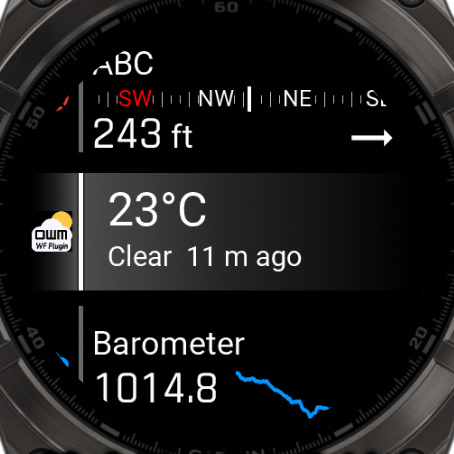
Adds weather from OpenWeatherMap to your watchface: current conditions, a 3-day forecast, wind, air quality and more. The app is free, and you need your own free OpenWeatherMap API key.
Don't want to create an API key? YR Weather GB works without one.
Set up the plugin
1. Install the app
Install it from the Connect IQ store, like any other watch app, and let it sync to your watch.
2. Get your API key
- Create a free account at openweathermap.org.
- Subscribe to One Call API 4.0 to get every field. It's free for up to 1,000 calls a day.
- Copy your key from My API Keys.
A new key can take up to 2 hours to start working.
3. Enter your key
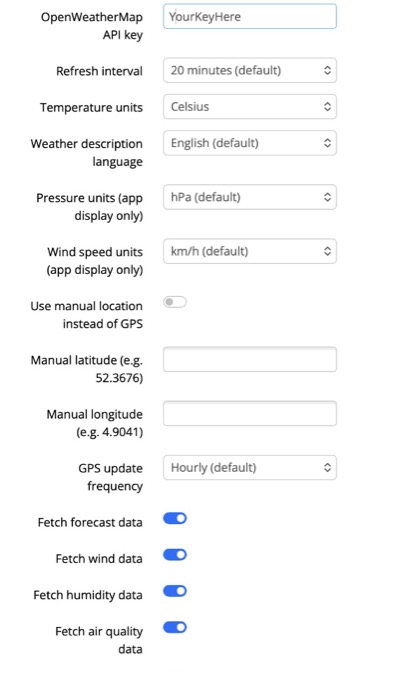
In the Connect IQ app on your phone, go to Devices → your watch → My Apps → OWM Weather GB → Settings, and paste it into OpenWeatherMap API key.
4. Open the app once on your watch
Open OWM Weather GB from your watch's app list. It has to be started at least once before it shows weather. After that, it keeps updating by itself. The first weather can take a few minutes. After restarting your watch, scroll through your glances once. That makes it get weather again.
Connect it to your watchface
There is nothing to pair and no code to enter. Once the plugin has weather, your watchface can read it from the watch. You only choose which fields to show:
1. Open the watchface settings on your watch
Go to Menu → Watch Face → your watchface and choose Customize, edit, configure or the edit icon. The exact path and wording are slightly different on every model.
2. Check that the plugin is found
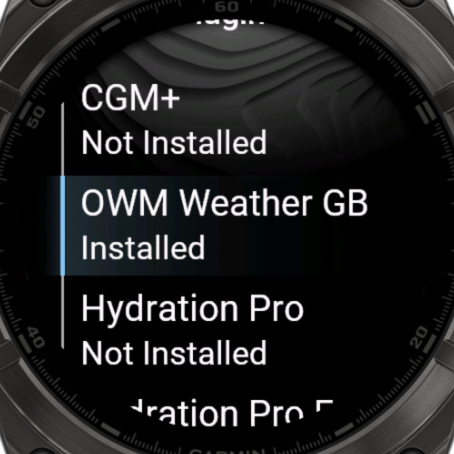
Open Plugins. OWM Weather GB should say Installed.
3. Choose a field
- Go back and open Data.
- Choose Pick on screen and select a box on the watchface, or choose a field from the list.
- Choose the Data row, then Plugins, then Open Weather Map - GB.
- Choose the weather you want to show, like Current Temperature.
Do the same for every other field you want to use for weather.
4. Set your units
Choose Data Options for the field to set its temperature, wind or pressure unit. The unit settings in the plugin's own settings don't change what the watchface shows.
These steps are for watchfaces with their settings on the watch, like No Excuses. On other watchfaces and apps, see Use it with other apps.
Which API key do I need?
You can see which type you have in the OWM Weather GB app on your watch, under Key type.
| Key type | What you get |
|---|---|
| One Call 4.0 or 3.0 | Every field. |
| Free (2.5) | Current weather only. No UV index, dew point, precipitation chance or forecast for the coming days. Those fields show --. Air quality also needs the free Air Pollution API enabled for your key. |
| Invalid | No weather at all. Check the key, or wait if you just created it. |
At the default 20-minute refresh, the plugin makes about 72 updates a day, well below the 1,000 free calls.
Available fields
The app itself is free. Fields marked PRO need the PRO version of your watchface.
Temperature
| Field | PRO | Notes |
|---|---|---|
| Current Temperature | – | |
| Max/Min Temp | – | Today's high and low in one field. |
| Feels Like Temp | – | |
| Temp Max, Temp Min | PRO | Today's high and low as separate fields. |
| Dew Point | PRO | Needs a One Call key. |
| Temp Tomorrow, Temp Day after Tomorrow | PRO | Needs a One Call key. |
| Max/Min Tomorrow, Max/Min day after Tomorrow | PRO | Needs a One Call key. |
Conditions, wind and rain
| Field | PRO | Notes |
|---|---|---|
| Weather Description Long | – | For example "light rain". Uses the language you set in the plugin. |
| Weather Description Short | PRO | For example "Rain". |
| Humidity | PRO | |
| Pressure | PRO | |
| Visibility | PRO | |
| Windspeed, Wind Degrees, Wind Gust | PRO | |
| Rain 1h Volume, Snow 1h Volume | PRO | 0 when there is none. |
| Cloud Cover | PRO | |
| Precipitation % | PRO | Chance of rain or snow in the next hour. Needs a One Call key. |
| UV Index (UVI) | PRO | Needs a One Call key. |
Air quality
| Field | PRO | Notes |
|---|---|---|
| Air Quality Index (AQI) | PRO | From 1 to 5. |
| AQI description | PRO | Good, Fair, Moderate, Poor or Very Poor. Always in English. |
| AQI - PM2.5, PM10, CO | PRO |
Location and updates
| Field | PRO | Notes |
|---|---|---|
| City Name | PRO | |
| Update Time | – | When the weather was last updated. |
Plugin settings
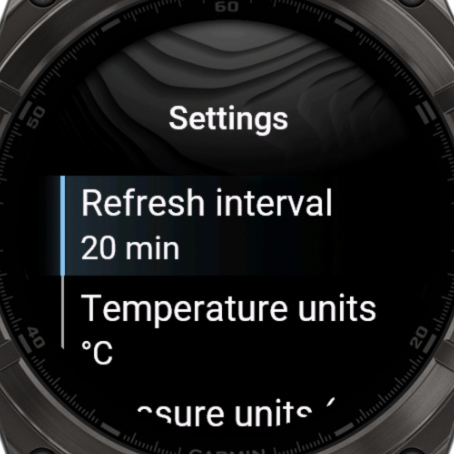
Change these in the Connect IQ app, or in the menu of the OWM Weather GB app on your watch. Only the API key is required.
| Setting | Default | What it does |
|---|---|---|
| OpenWeatherMap API key | Empty | Your key. Required. |
| Refresh interval | 20 minutes | How often to get new weather: 10, 15, 20, 30 or 60 minutes. More often uses more of your free calls and more battery. |
| Weather description language | English | The language of the weather description fields. There are 46 to choose from. |
| Use manual location instead of GPS | Off | Always show the weather for one place. |
| Manual latitude, Manual longitude | Empty | The place to use, for example 52.3676 and 4.9041. Use the Location Lookup tool to find yours. |
| GPS update frequency | Hourly | How often to check your location: every fetch, hourly, every 6 hours or daily. Less often saves battery. |
| Fetch forecast, wind, humidity, air quality and location data | On | Turn off what you don't use. Fields that need it will show --. |
| Temperature units, Pressure units, Wind speed units | Celsius, hPa, km/h | For the plugin's own screens and the Temperature complication. To change a field on the watchface, use its Data Options. |
Need coordinates? Use the Location Lookup tool.
Use it with other apps
Other watchfaces and apps that support complications can show the Temperature, Condition and Air Quality values.
In the list, these end in _owmgb for OWM Weather GB and _yrgb for YR Weather GB, so you can tell the two apart.
On my Classic watchfaces, you can do this with custom complications.
Custom complications don't have their own icon or data formatting. Want an official implementation in your watchface or app? Contact me at CE@@9BDoGQDSXVQSUPY9.
Troubleshooting
On the watchface
- No weather after restarting your watch: scroll through your glances once.
- A field shows
--: open the OWM Weather GB app on your watch and read the message there. Make sure your phone is connected. In the watchface settings, you can also try Refresh all data. See also Why is my data showing --. - Only some fields show
--: your key type may not include them, or the data may be turned off in the plugin settings. - The Plugins menu says Not Installed: check that the app is on your watch, open it once, then choose Refresh all data in the watchface settings.
- A field shows PRO: this field needs the PRO version of your watchface. You can try it for an hour.
In the OWM Weather GB app
| Message | What to do |
|---|---|
| Enter an OWM API key in settings | No key has been entered yet. See step 3 above. |
| API key not valid - check settings | Check that you copied the whole key. A new key can take up to 2 hours to start working. |
| Waiting for data | The first update hasn't finished. Check that your phone is connected, and give it a few minutes. |
| Waiting for GPS | The plugin is looking for your location. Go outside, or use a manual location. |
| No GPS fix available | Start an outdoor activity with GPS for a moment, or use a manual location. |