Goals & Progress Bars
Progress bars and rings show your progress towards a goal. You choose what the goal is.
Choose what a bar shows
Progress bars are fields too. Open one in Data and choose your data. Only data that can show progress is listed. Choose Nothing (remove) to hide the bar. The bars on your watchface are in its manual, such as No Excuses.
Set the goal
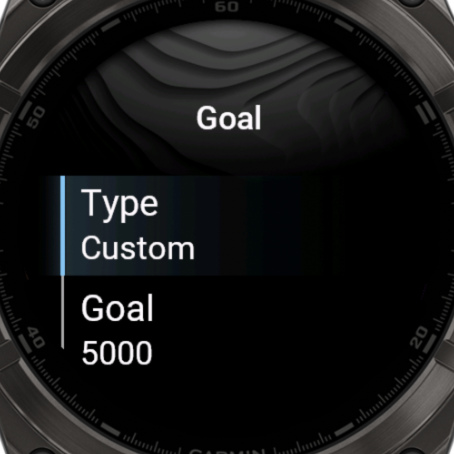
Go to Data Options → Goal, and choose a Type:
| Type | What it does |
|---|---|
| System | Uses the goal from your Garmin account, like your step goal. Only on fields that have one. |
| Custom | Your own number. Some fields have a Min and a Max instead, like heart rate. |
| Full | Always shows the progress as completed. |
| Empty | Always shows no progress. |
Two kinds of goals
With Custom, the kind of goal depends on the field:
- Regular goal: the progress starts at 0 and is completed at your number. For example, a step goal of 5000.
- Min and Max: you set where the progress starts and where it ends. This is good for fields like weight, where 0 isn't a useful start.
Flipping Min and Max flips the progress too. So with weight:
- To gain weight: set Min to your current weight and Max to your goal weight.
- To lose weight: also set Min to your current weight and Max to your goal weight. Max is the lower number here, and the progress goes up as your weight goes down.
Good to know
Goals only show up on fields that have a progress indicator, like a bar or a ring. To change its colors and style, see the manual of your watchface.