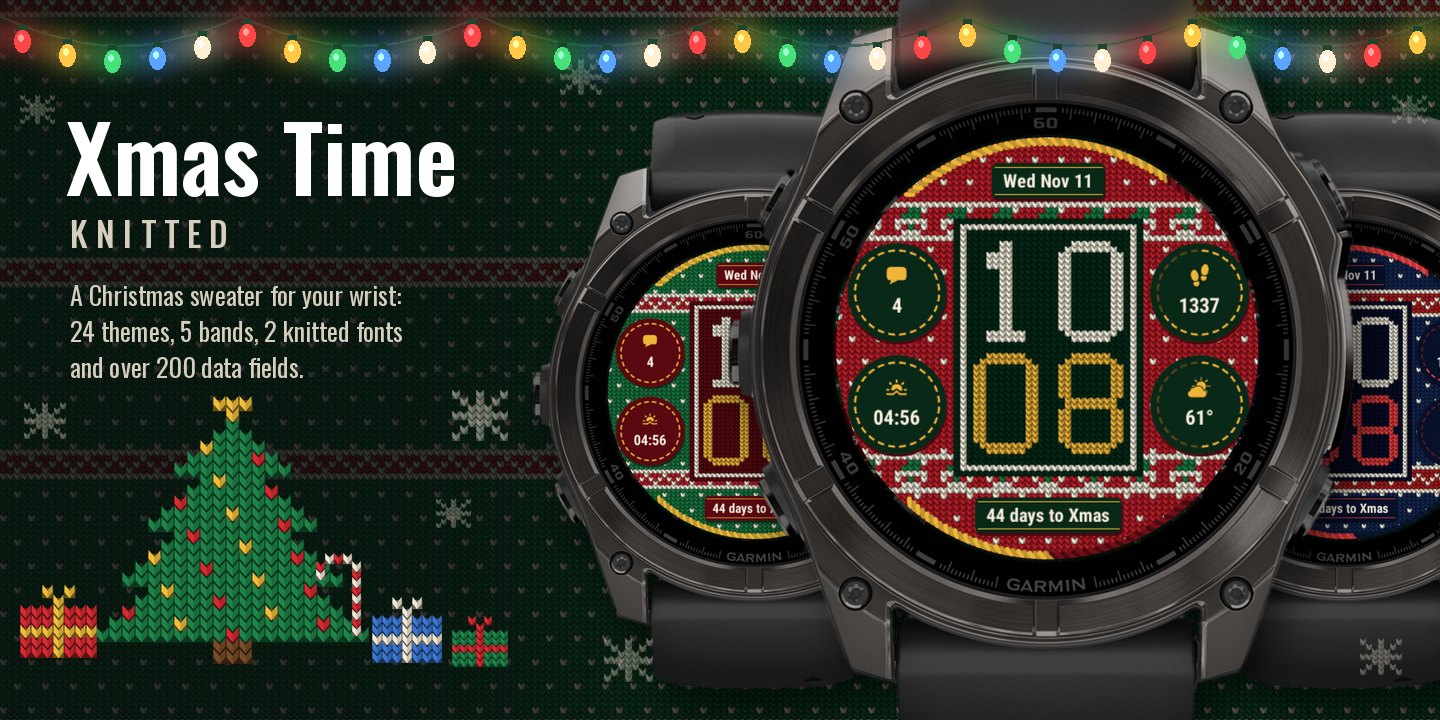
Xmas Time
Download Options
 Free Version
Purchase Watchface - $3.99


Xmas Time - GB - Manual
Table of Contents
The watchface
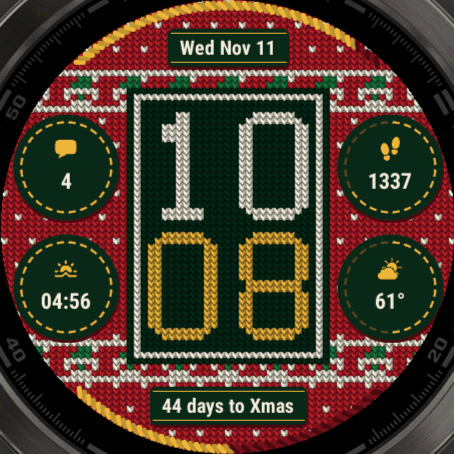
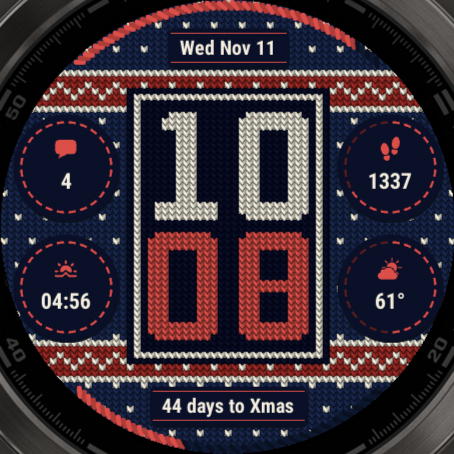
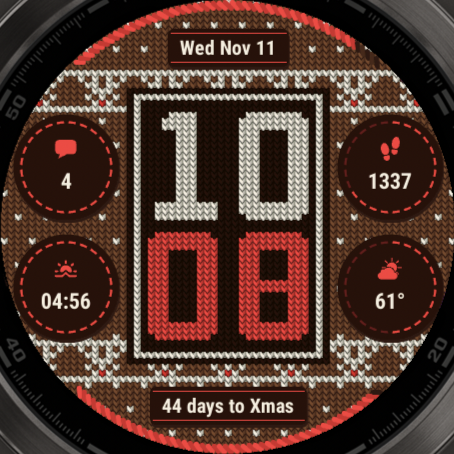
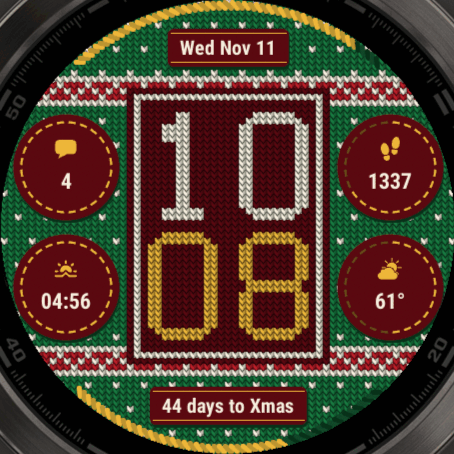
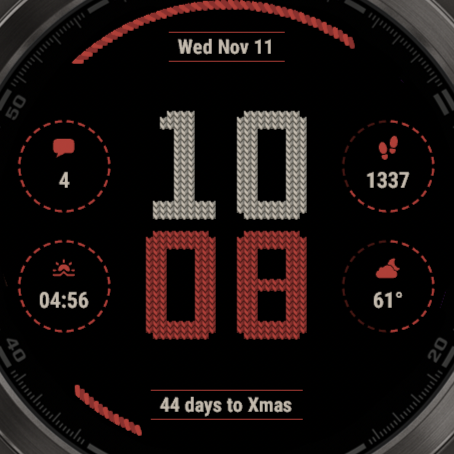
- A knitted sweater fills the screen, with a band of Christmas motifs above and below the time.
- Time in the middle: the hour above the minute, knitted into a panel.
- Four felt circles, two on each side of the time. Each shows a data field with its icon above the value, inside a stitched ring.
- Two felt labels, one at the top and one at the bottom. The top one shows the date, the bottom one the days to Christmas.
- Two yarn arcs along the top and bottom edge. They show the progress of a field.
Opening the settings
All settings are on the watch. The basics are also in the Connect IQ app on your phone, see Settings on your phone.
On your watch, go to Menu → Watch Face → Xmas Time and choose Customize, edit, configure or the edit icon. The exact path and wording are slightly different on every model.
Your settings are stored on the watch. They usually stay when you reinstall the watchface, but this isn't guaranteed.
The menus of this watchface are at the end of Advanced options: Fields, Sweater and, on AMOLED watches, Always-On Display. The time font and the time colors are in Time options. See the Settings Menu Map for the rest of the menu.
Settings on your phone
In the Connect IQ app, choose My Device → Watch Faces → Xmas Time → Settings. You find the basics there, and everything else stays on the watch. How it all works is explained in Settings on Your Phone.
- Theme and Load Profile, and in the free version the Pro Code.
- The options of this watchface: Time Font, Sweater, Band, and on AMOLED AOD Mode and AOD Brightness. A theme also sets the band, so when you choose both in one save, the theme wins.
- DATA FIELDS: every field from the table below. The circles and labels also have their label. Top Arc and Bottom Arc have no label, and only list data that can show progress.
- FONTS: the Value Font and the Label Font.
- COLORS: every color, like the yarns of the sweater, the patches and the time. The Background Color is only there on MIP watches, the AOD Time Color only on AMOLED.
- PLUGIN FIELDS and Custom Text at the bottom.
Data fields
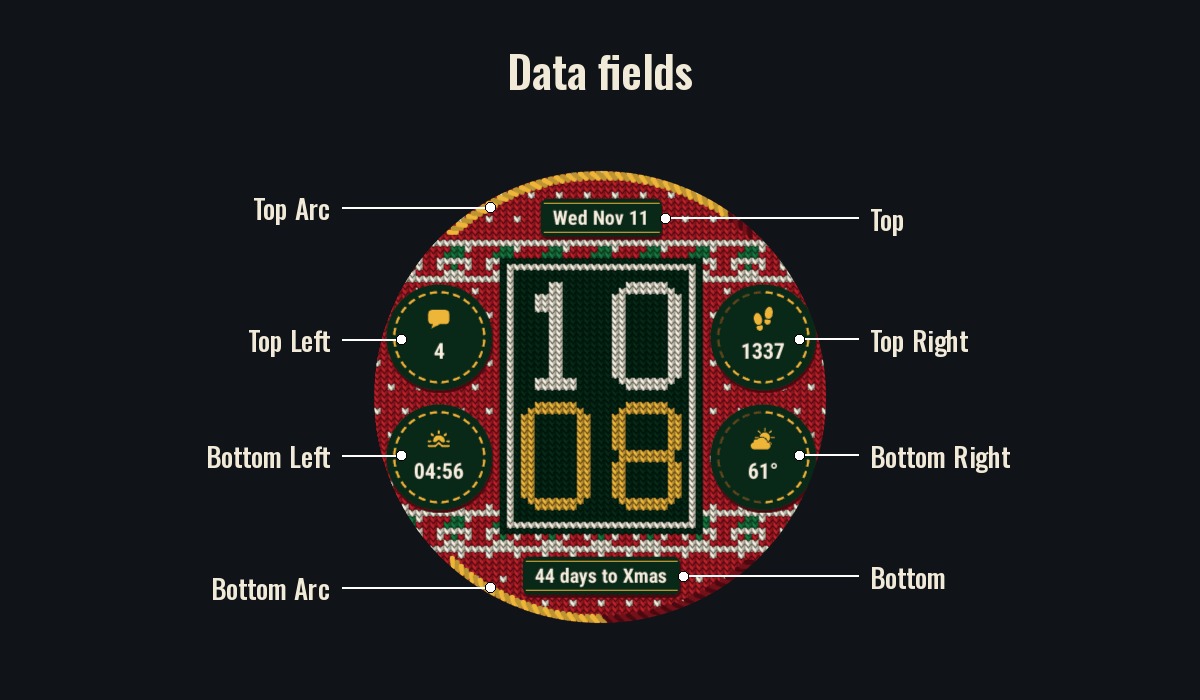
Xmas Time has 8 fields. This picture shows where each one is:
Changing a data field
- Open Data.
- Choose Pick on screen and select a field on the watchface, or choose a field from the list.
- Choose the Data row, then a category, then the field you want.
- Use Data Options for its format, units and refresh time.
The same 8 fields are also in Advanced options → Fields, each with the data it shows now.
| Field | Where it is | Default |
|---|---|---|
| Top | The felt label at the top | Day Month Day, such as Wed Nov 11 |
| Top Left | The upper circle on the left | Notifications |
| Top Right | The upper circle on the right | Steps Today |
| Bottom Left | The lower circle on the left | Sunrise |
| Bottom Right | The lower circle on the right | Current Temperature, with the weather icon |
| Bottom | The felt label at the bottom | Days to Christmas |
| Top Arc | The yarn along the top edge, progress only | Battery |
| Bottom Arc | The yarn along the bottom edge, progress only | Body Battery |
Circles
A circle shows the icon of its field above the value. A value that is too wide for the circle is written in the smaller Label Font.
The stitched ring has 24 stitches. A field with a goal, such as Steps Today, fills the ring clockwise from the top: the stitches past your progress turn dark. A field without progress, such as the temperature, keeps all stitches lit.
Labels
The top and bottom labels show the icon of the field (if it has one) left of the value, with a stitched line above and below. The felt patch grows with the text.
A label with nothing to show has no patch. Very long text is cut off at the edge of its space.
Yarn arcs
The arcs only show progress, so you can only pick data that has it. Both fill from left to right.
The filled part is twisted yarn in the Icon Color. The rest is in the dark shades of the Sweater Color.
See Goals & Progress Bars to set your own goal for a ring or an arc, and Custom Date & Time Formats to show the date in another format.
Days to Christmas
This field is only on Xmas Time. It shows how many days are left until December 25, such as 44 days to Xmas. It shows 0 on Christmas Day, and from December 26 it counts down to next Christmas.
- Find it in the category Special when you choose the data of a field.
- The words after the number start in the language of your watch. They are the Text behind Value in its Data Options: change them to anything you like, or remove them to show only the number.
- On a small screen the text can be too long for the label. The watchface then shortens it by itself: first "days" becomes "d" (44d to Xmas), and if that is still too long only the number stays (44d).
- It's in the bottom label by default. You can put it in any circle or label. In a circle there is little room, so a short Text behind Value works best.
- It has no progress, so it can't go on a yarn arc.
The field is in the free version, it doesn't need PRO.
Time and the knitted fonts
Open Time options in the settings. You see a preview of the knitted time at the top, with these rows below it:
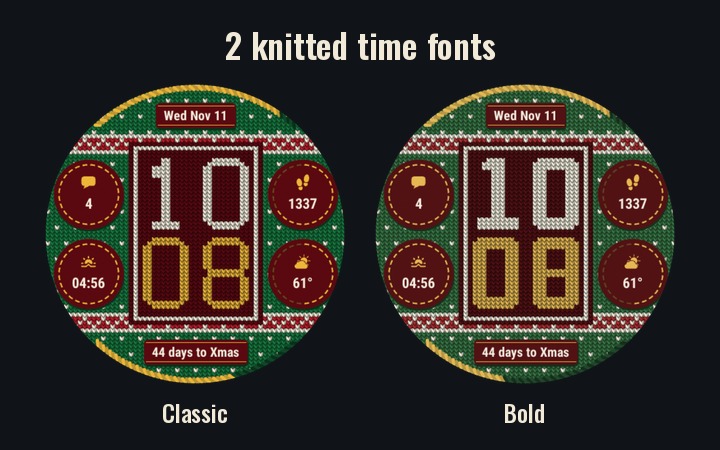
- Font: Classic or Bold. Select it to switch between the two.
- Hour Color, Minute Color: the yarn of the hour and of the minute.
- 24 Hour, Leading Zero
Both fonts are knitted, stitch by stitch, on the time panel. Classic is a pixel font with thin strokes. Bold has thick strokes, like the digits of a digital clock. The minute always has 2 digits. An hour with 1 digit sits in the middle of the panel.
The texts of the fields use the fonts of your watch: the Value Font (the values in the circles) and the Label Font (the top and bottom labels, and a circle value that is too wide). Change them in Advanced options → Fonts. See Fonts.
Sweater and bands
Find these in Advanced options → Sweater.
- Sweater: On, or Off, black background.
- Band: the knitted band above and below the time. Only shown while the sweater is on.
- Sweater Color, Pattern Color, Accent Color, Time Panel Color, Patch Color: see Colors.
The Time Font, Sweater and Band are also in the settings on your phone.
Bands
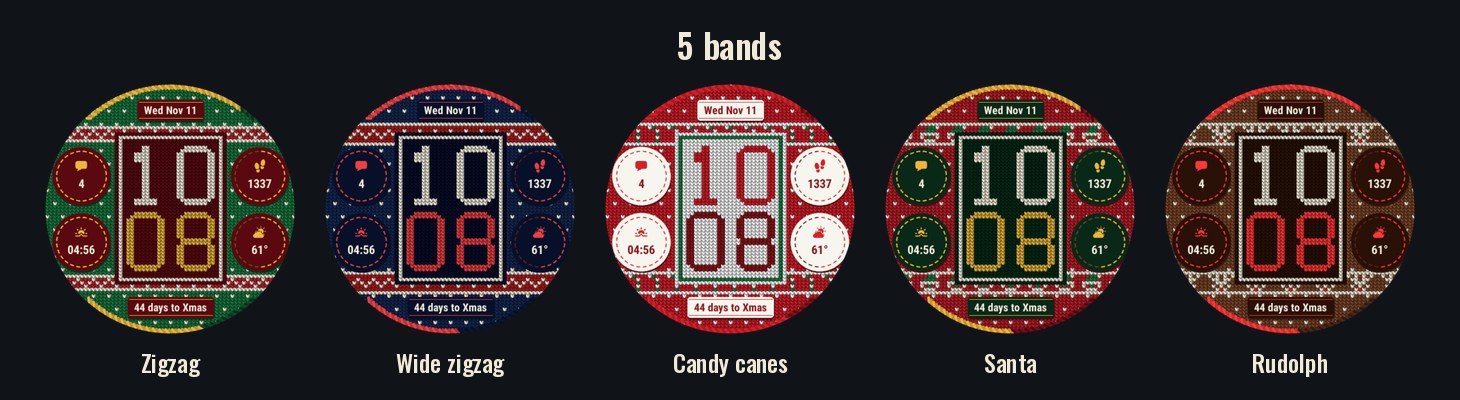
There are 5 bands. Each theme comes with its own band, and you can change it.
- Zigzag
- Wide zigzag: a higher zigzag, with an extra row in the Accent Color above and below
- Candy canes
- Santa
- Rudolph
Sweater off
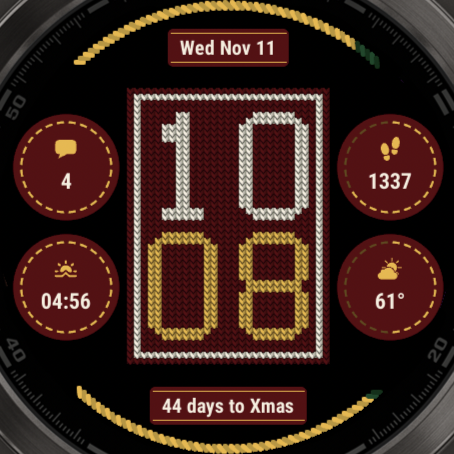
With the sweater off, the background is black. The time panel, the circles, the labels and the arcs stay, without the shadows under the patches. The unfilled part of the arcs keeps the dark shades of the Sweater Color.
Colors
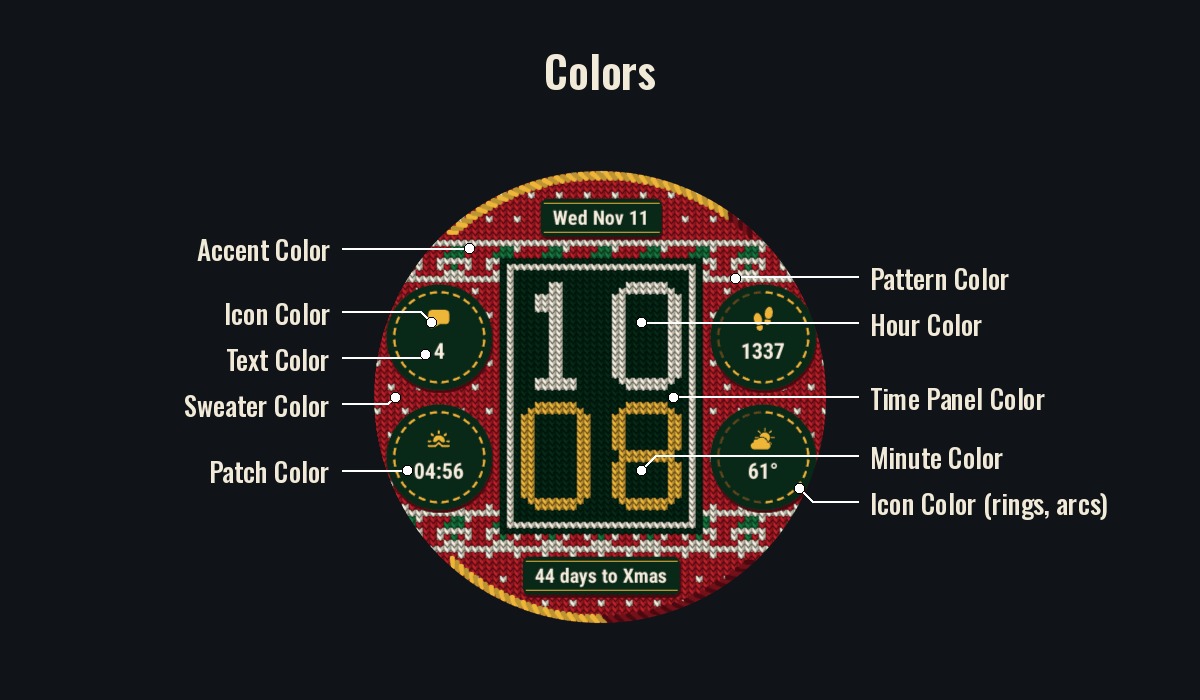
This picture shows where each color is:
| Color | What it colors | Menu |
|---|---|---|
| Sweater Color | The yarn of the sweater. Its darkest shade is also the shadow under the patches (AMOLED) and the unfilled part of the arcs. | Sweater |
| Pattern Color | The dots on the sweater, the band, and the frame around the time panel. | Sweater |
| Accent Color | A second color in the band. It is also the frame around the time panel when the Time Panel Color is the same as the Pattern Color. | Sweater |
| Time Panel Color | The panel behind the time. | Sweater |
| Patch Color | The felt circles and labels. | Sweater |
| Hour Color, Minute Color | The knitted hour and minute. | Time options |
| Text Color | The values of the fields. | Colors |
| Icon Color | The icons, the stitched rings, the stitched lines of the labels and the filled part of the arcs. | Colors |
| AOD Time Color | AMOLED only: the time on the always-on display. White keeps the Hour and Minute Color. | Always-On Display |
The yarns and their shades
The Sweater, Pattern, Accent and Time Panel Color are the yarns of the sweater, and the Hour and Minute Color are the yarns of the time. You pick one color per yarn. The watchface works out the darker shades of that color for the stitches itself, so the knit looks real in any color: 4 shades on AMOLED, 2 on MIP. The stitches of the rings and arcs that aren't filled yet are worked out the same way.
The menu column says where you find a color. Advanced options → Colors also has every color in one list. On MIP watches that list starts with a Background Color, which this watchface doesn't use, as the sweater (or the black background) covers the screen. See Colors for how to pick or type a color.
Themes
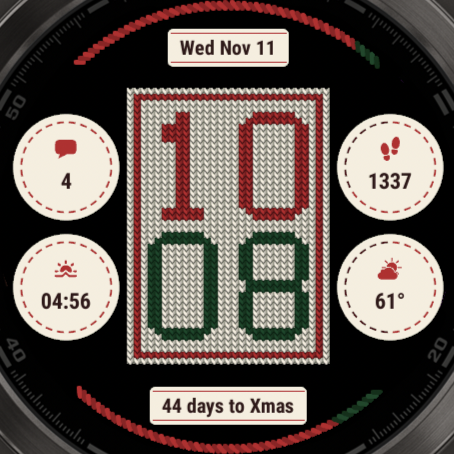
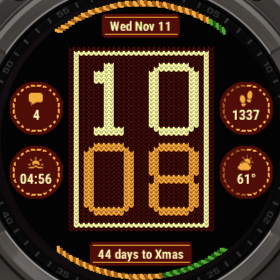
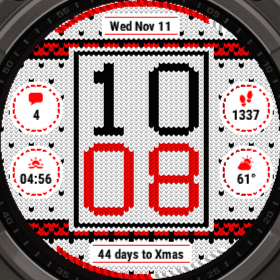
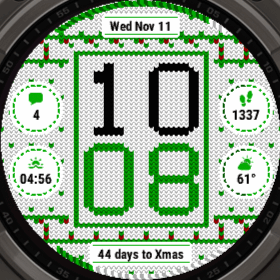
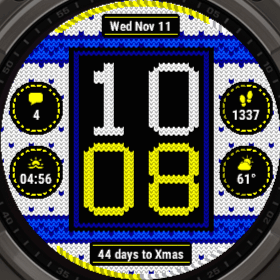
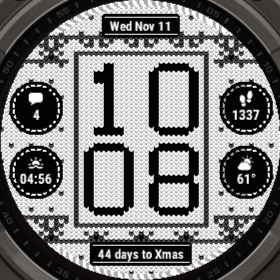
AMOLED watches have 24 themes, one for every day of Advent. MIP watches have the same 24, made for a MIP screen, plus 4 with high contrast on a white sweater: White, White Pine, White Night and Newsprint. See all of them on the themes page.
Choose a theme in Themes in the settings, or as Theme on your phone. A theme sets all colors and the band. Your data fields, the time font and Sweater on or off stay as they are. So choose your theme first, then change what you like.
The free version starts with the Santa theme, the PRO version with Nordic.
Can't decide? The last option in the theme picker, AI Gen, makes a new set of colors every time. On AMOLED it starts from Holly and picks new Icon, Minute, Sweater and Accent colors, with a dark Time Panel and Patch Color. On MIP it starts from Nordic, with its black panel and patches, and picks new Icon, Minute, Sweater and Accent colors. The text, the hour and the pattern stay light, and the band is the one of the theme it starts from. You can also put Generate AI Theme on a touch area.
See Themes for how themes work, and how to keep your own look.
MIP watches
Xmas Time looks the same on MIP and AMOLED watches, with a few differences:
- MIP screens have only 64 colors, so the MIP themes use those, and each yarn has 2 shades instead of 4.
- The patches have no shadow.
- MIP has its own 28 themes, including 4 on a white sweater.
- There is no Always-On Display menu and no AOD Time Color: a MIP screen is always on.
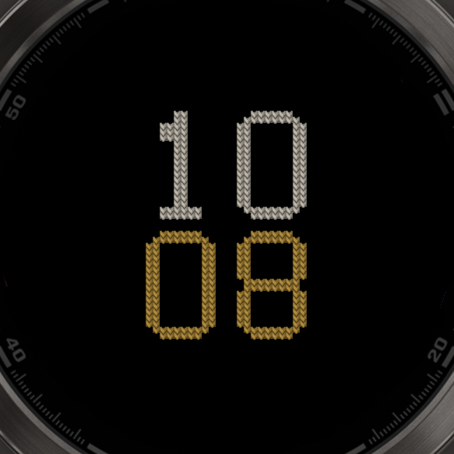
Always-On Display, AMOLED watches
Find these in Advanced options → Always-On Display. The AOD Mode and AOD Brightness are also in the settings on your phone. Garmin limits how much of the screen may be lit on the always-on display, see Always-On Display for how that works.
- Mode: what stays on the screen, see below.
- Shift: Off, or a number of pixels. Moves the screen a little to prevent burn-in.
- Brightness: how bright the time and your data are, in steps of 10%. 80% by default.
- Time Color: the AOD Time Color. White keeps the Hour and Minute Color. Any other color makes the whole time that color.
The modes
| Mode | What you see |
|---|---|
| Screen off | Nothing. The screen is off until you raise your wrist. |
| Time only | Only the knitted time, on black. |
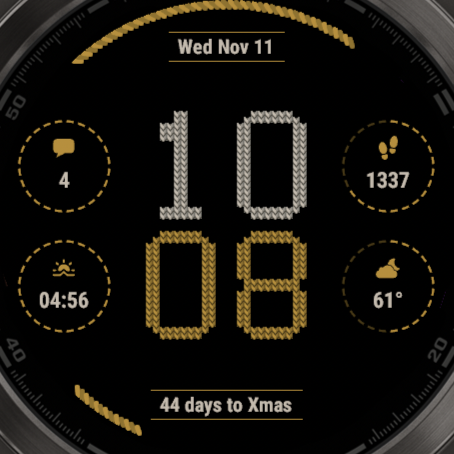
| Time + data fields | The default. The time and your data on black, without the sweater and the patches: the stitched rings, icons, values, the lines of the labels and the filled part of the arcs. The values use the Hour Color. |
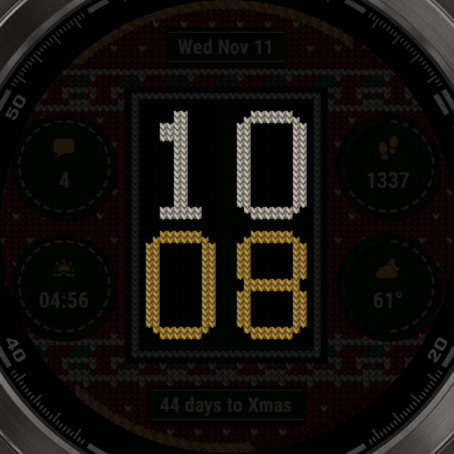
| Very dark background | The whole watchface, very dark, with the time over it. |
Touch areas
On a watch with a touch screen, every field can open a shortcut. This watchface also has 2 touch areas of its own: Hour and Minute, the two lines of the time.
Set them in Advanced options → Touch options. See Touch & Shortcuts for how to set them up, and for what a shortcut can do, such as the next profile or a new AI theme.
Free and PRO
Every theme, band, font and color is in the free version, and so is the Days to Christmas field. The PRO version from the Connect IQ store is fully unlocked. In the Free version, these need PRO:
- Data fields marked [PRO]. You can try one for an hour, then it shows PRO instead of its value.
- Touch shortcuts. You can try them for an hour, starting with the first shortcut you use.
- More than 2 profiles
To activate the Free version, open Pro Status → Activate and enter your code, or enter it as the Pro Code in the settings on your phone. Your phone needs to be connected. See Free vs PRO & Activation, which also explains which version to choose.
More documentation
This manual only covers what is specific to Xmas Time. The settings system works the same on every watchface with its settings on the watch, and the On-Watch Settings documentation explains all of it. For example:
- Settings Menu Map: everything in the settings menu, in one overview
- All Datafields: every field you can pick, with a search box
- Alternative Times: show the time in another city in any field
- Refresh Time: how often a field updates, and how that saves battery
- Custom Date & Time Formats: show the date or time exactly the way you want
- Goals & Progress Bars: set your own goal for a ring or an arc
- Labels, Colors & Offsets: change the icon, color or position of a single field
- Profiles: save different setups and switch between them
- Themes: how themes work, and how to keep your own look
- Colors: change any color, or type an exact one
- Fonts: this watchface has a Value Font and a Label Font
- Plugins: more data with OWM Weather GB, YR Weather GB, CGM+ and Tides GB
- Data From Other Apps: show values from apps that support complications
- Troubleshooting: what to do when something doesn't work
Have a question? See the Frequently Asked Questions.