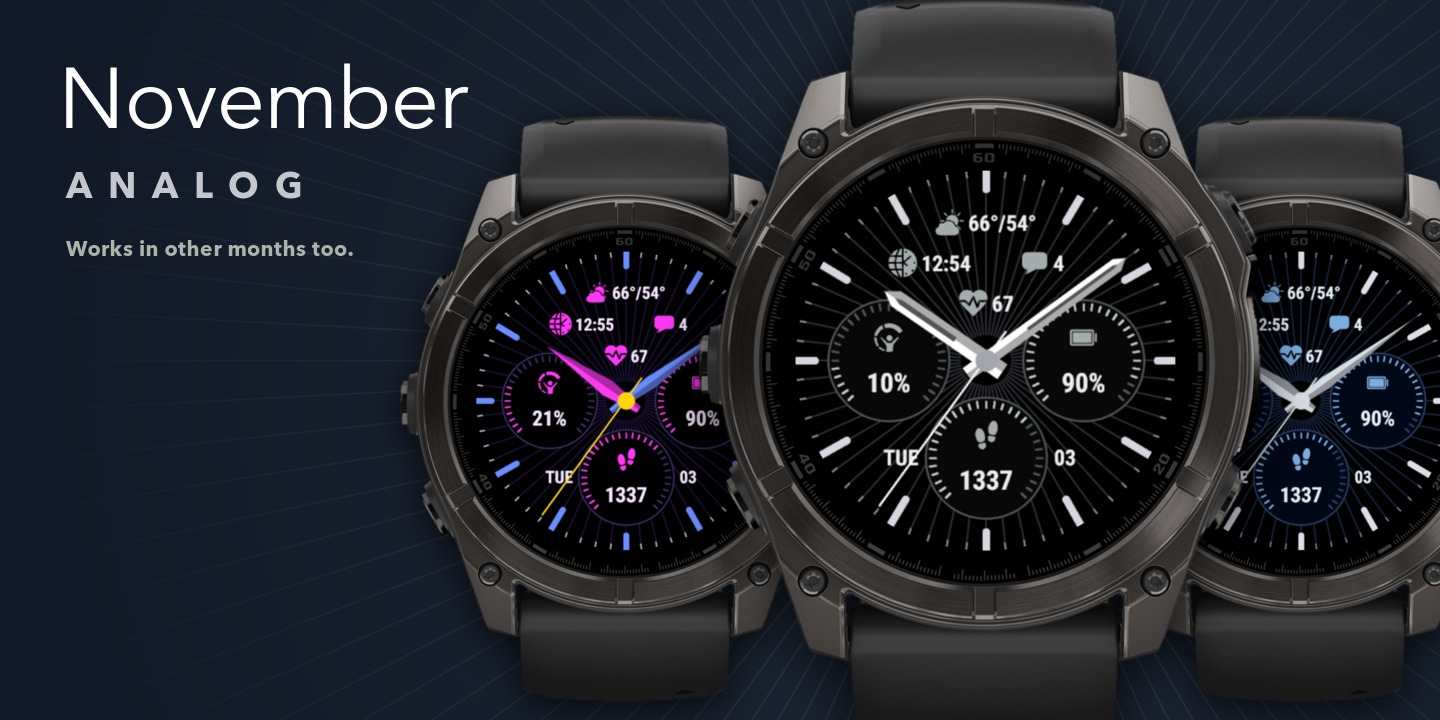
November Analog
Download Options
Purchase Watchface - $3.99


November Analog - GB - Manual
Table of Contents
Opening the settings
All settings are on the watch. There are no settings for this watchface in the Connect IQ app on your phone.
On your watch, go to Menu → Watch Face → November Analog and choose Customize, edit, configure or the edit icon. The exact path and wording are slightly different on every model.
Your settings are stored on the watch. They usually stay when you reinstall the watchface, but this isn't guaranteed.
Changing a data field
- Open Data.
- Choose Pick on screen and select a field on the watchface, or choose a field from the list.
- Choose the Data row, then a category, then the field you want.
- Use Data Options for its format, units and refresh time.
The fields on this watchface
| Field | Where it is |
|---|---|
| Top, Top Left, Top Right, Top Bottom | The 4 fields in the top half of the dial |
| Left Circle, Right Circle, Bottom Circle | The value inside each circle |
| Left Progress, Right Progress, Bottom Progress | The gauge around each circle, progress only |
| Date Left, Date Right | On both sides of the bottom circle |
| Ring Progress | The ring around the edge, progress only. Off by default |
| AOD Field | AMOLED only: on the always-on display, in the modes with a field |
Pick on screen only has the top, circle and date fields. Find the gauges, the ring and the AOD field in the list, or in the menus below.
You can also go to the same fields through Advanced options: Top Fields, Circles, Date and Ring & Dial. The Circles menu also has the colors of the plate, the rim and the gauges.
Hands
Open Hands in the settings. You see a preview at the top, with the selected option below it. Press select to go to the next value of that option.
- Hand Style: see below. A theme also sets the hand style, so choose your theme first.
- Show Hands: turns the hands off, for when you only want to see your data.
- Hour, Minute and Second colors: how many depends on the style. Second colors only appear with the second hand on.
- Second Hand: on or off.
- Center Cap: the color of the dot in the middle.
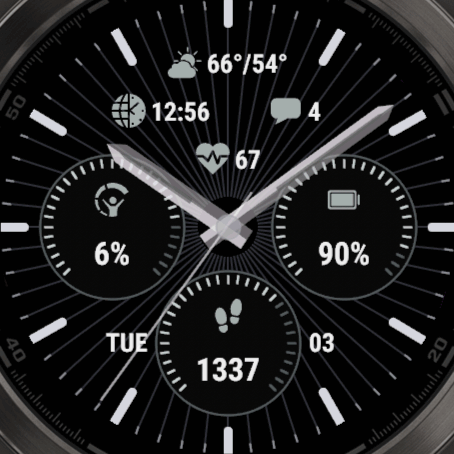
- Hand Transparency: makes the hands see-through, so you can read what is under them. AMOLED watches with a GPU only. The hands wobble a bit when this is on.
- Hands Under Data: draws your data on top of the hands, so a hand never covers a value. This uses more battery.
- Smooth Minute Hand: moves the minute hand a little every 10 seconds, instead of once a minute.
Hand styles
On MIP watches, Pencil and Aviator have no outline, as a thin outline doesn't look good on those screens.
Inlay
Colors: Main, Inlay
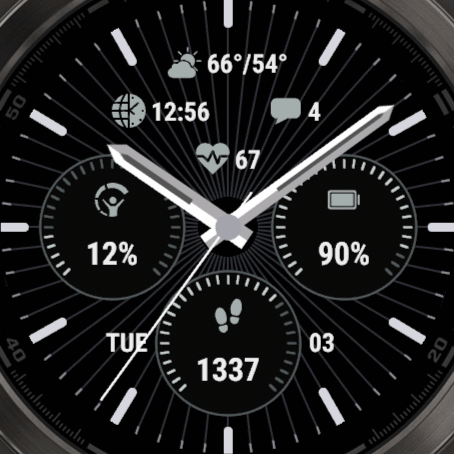
Dauphine
Colors: Main
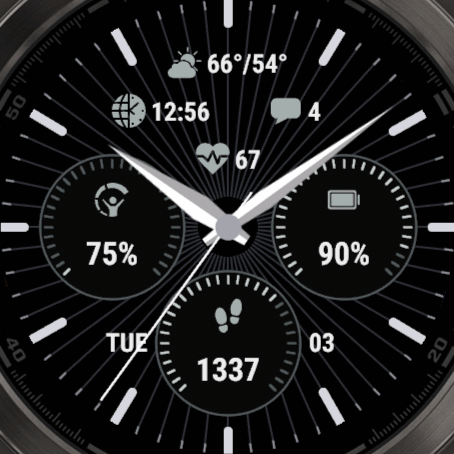
Pencil
Colors: Main, Outline, Base
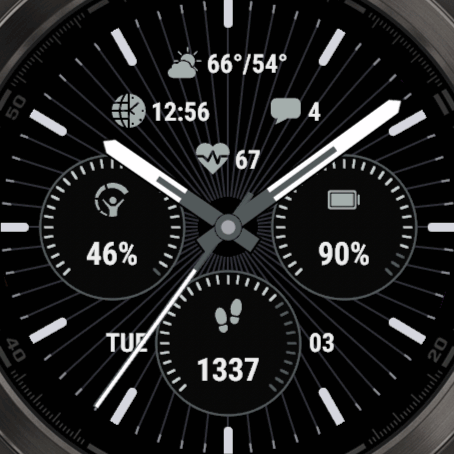
Aviator
Colors: Main, Outline, Base
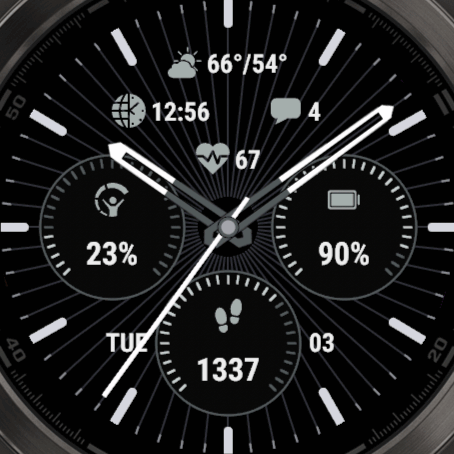
Sword
Colors: Main, Outline, Base
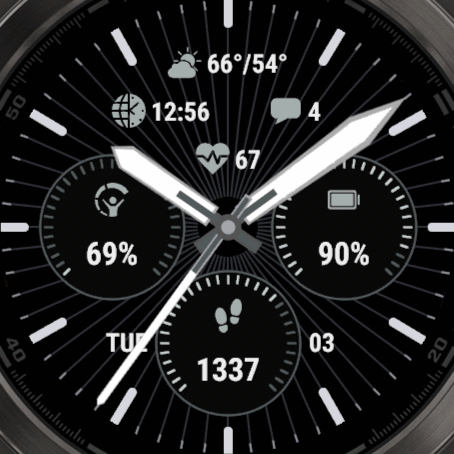
Delta
Colors: Main, Base
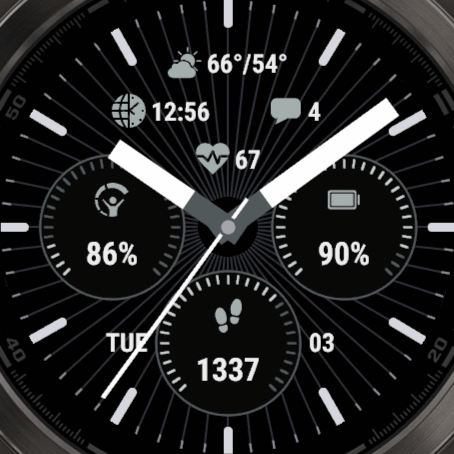
Hands Under Data
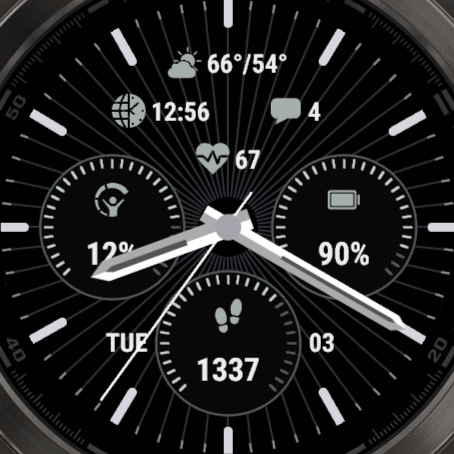
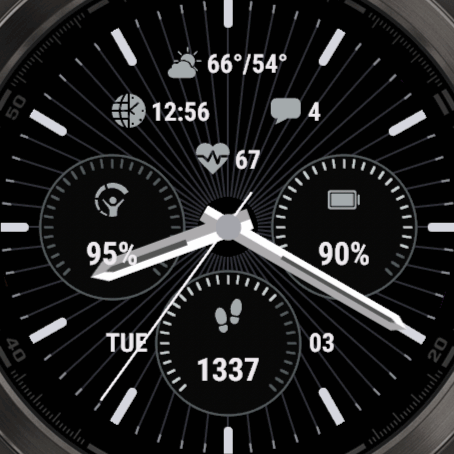
Hand Transparency
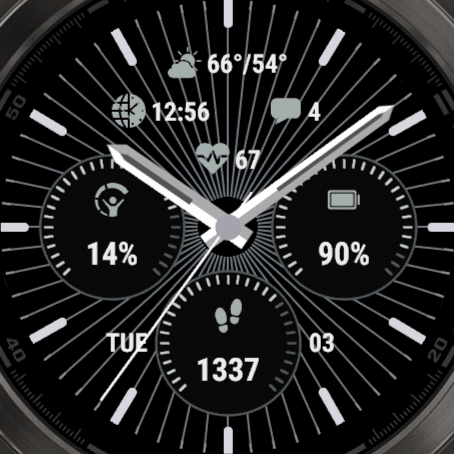
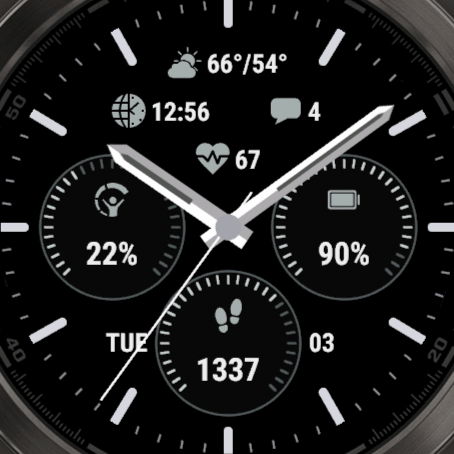
Background rays
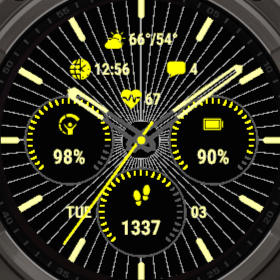
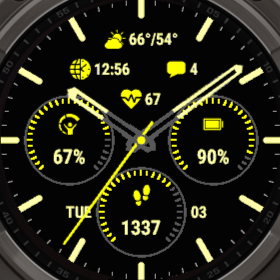
The rays are the 60 fine lines from the center of the dial to the edge. Find them in Advanced options → Ring & Dial → Background Rays. Turn them on or off, and choose their Ray Color. Each theme sets its own rays, and on some they are off.
- Keep the color subtle. The rays are meant to stay in the background, so a dark color works best. On a black MIP screen, try
000055,005500or550000. - On AMOLED, the rays count for the always-on display. The Full mode shows them, and bright rays can take you over the Garmin limit, which turns the screen off. The other modes don't show them.
Ring, gauges and markers
These are in Advanced options → Ring & Dial. Some rows only appear when the option they belong to is on.
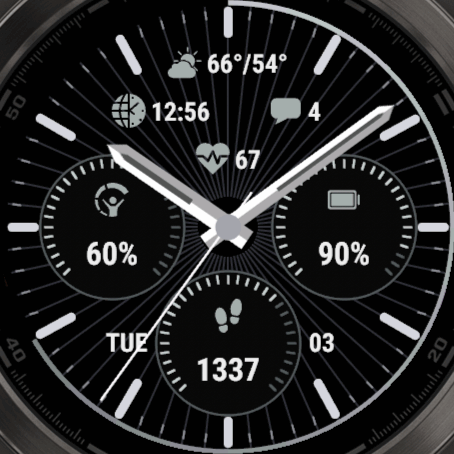
- Ring Progress: the field the ring shows. It's set to Nothing by default, which hides the ring and its other options.
- Progress Style: Gradient, Color merge, Single color or Single color filled, with Progress 1, 2 and 3 as its colors.
- Progress Width: how thick the ring is.
- Quarter, Hour and Minute Markers: a color for each type of marker.
To change the gauge in a circle, go to Advanced options → Circles and choose its progress field. See Goals & Progress Bars to set your own goal.
Themes
AMOLED and MIP watches each have their own themes, as they show colors very differently. MIP also has reversed themes, with a light background. See all of them on the themes page.
A theme sets the colors, the hand style and the rays. Your data fields stay as they are. Can't decide? The last option in the theme picker, AI Gen, makes a new set of colors every time.
Always on, MIP watches
A MIP screen is always on. When you lower your wrist, the watch goes into low power mode, and Garmin only gives a watchface a very short moment to draw something new every second. That's enough for the second hand or for a data field, but not always both. So you choose what keeps moving, with Always On at the bottom of the Hands menu.
| Option | What it does |
|---|---|
| Taking turns | The default. The second hand and your fields each get a turn. When no field has changed, the second hand moves anyway. |
| Second hand | The second hand moves every second, and the fields wait. |
| Fields | Fields that are set to update every second get that time. The second hand is not shown moving. |
| None | Nothing updates every second in low power mode. This uses the least battery. |
Good to know
- Your fields need the right refresh time: set it to Always on in the Data Options of a field. This works for the circles and the date fields. The top fields update on the next minute.
- In low power mode, the second hand is a thin line in your Second color, whichever hand style you use. There isn't enough time to draw the full hand.
- With Second Hand or Show Hands off, Second hand and Taking turns leave only the fields to update.
- When you raise your wrist, everything updates as usual.
Always-On Display, AMOLED watches
There are two places for these settings. The hands are in the Hands menu, everything else in Advanced options → Always-On Display. The always-on display has to stay under 10% brightness, or the screen turns off. See Always-On Display for how that works.
Advanced options → Always-On Display
- Mode: what stays on the screen, see below.
- Data Field: the field to show, in the modes with a field.
- Shift: moves the screen a few pixels to prevent burn-in.
- Time Brightness: how bright the hands and the dial are.
- Data Brightness: how bright your data is. If the screen stays dark, keep this under 80%.
- Data Color Filter: white keeps the colors as they are.
Hands menu
- AOD Second Hand: Hide, At 12 o'clock, or Keep, which leaves it where it was when you lowered your wrist. It doesn't move.
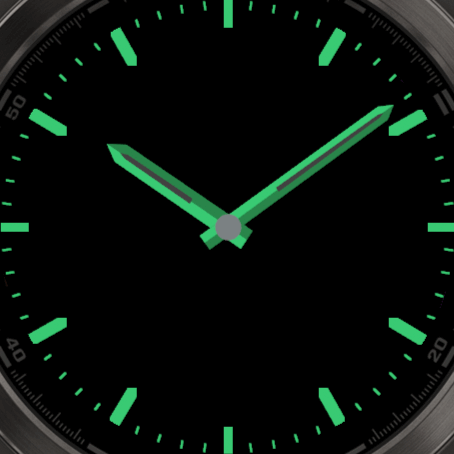
- AOD Hand Color: Keep as is, Green Lume, Blue Lume, Red Lume, Amber, White or Custom. Lume only colors the main part of the hand, like the glowing hands of a real watch.
- AOD Dial Color: the same options, for the markers.
The modes
Full
The default. Your data, the rays and the hands, dimmed.
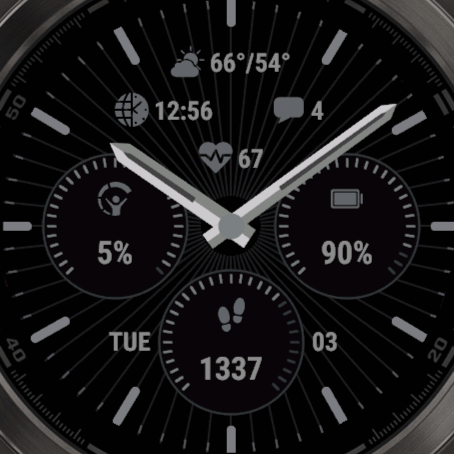
Dial + hands
Only the markers and the hands.
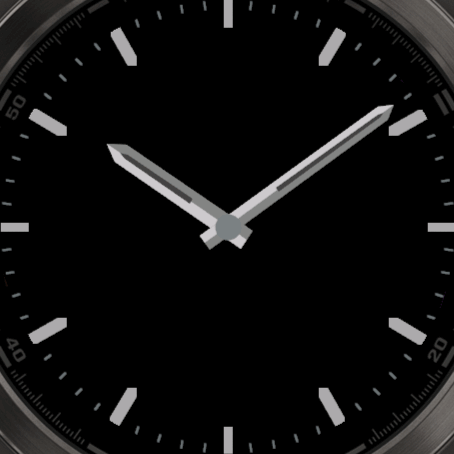
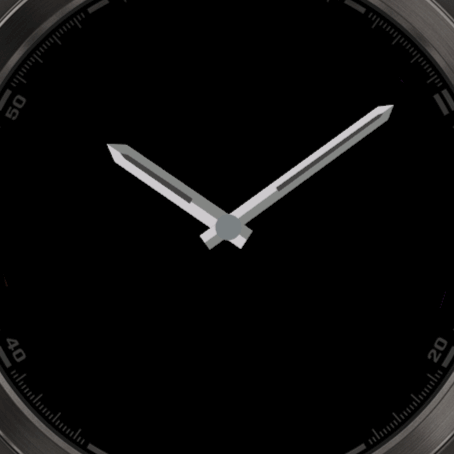
Hands only
The least lit pixels with something to see.
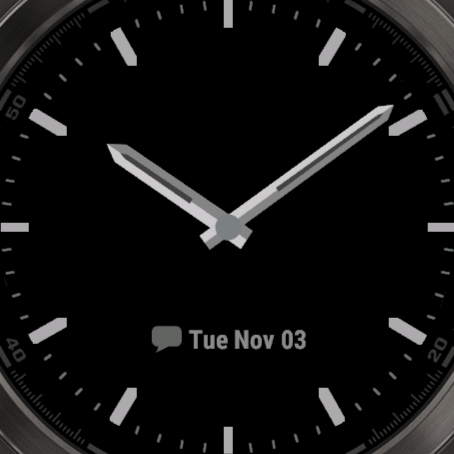
Dial + hands + field
With the AOD Field.
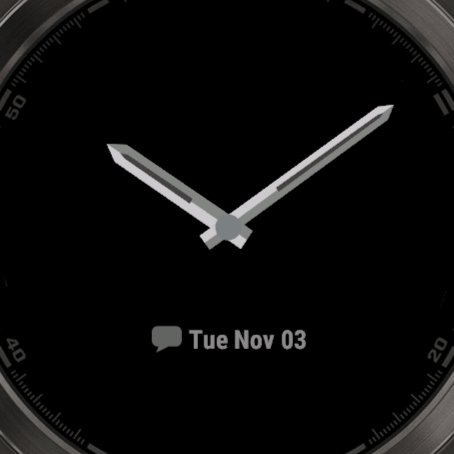
Hands + field
Only the hands and the AOD Field.
Screen off
The screen is off until you raise your wrist. This saves the most battery.
Green Lume
Dial + hands, with Green Lume for the hands and the dial.
Instinct Crossover
The Instinct Crossover has real, physical hands, so there is no Hands menu. The watchface can draw a highlight on those hands instead. Find it in Advanced options → Hand Highlights.
- Hand Style: the shape of the highlight, or No Highlight.
- Second Hand: No Second Hand, Fade-in or Solid.
- AOD Style: the highlight on the always-on display.
- Minute, Hour and Second Hand Color: these follow the hand colors of your theme, so a new theme also changes your highlights.
Touch areas
On a watch with a touch screen, every field can open a shortcut. This watchface also has 5 touch areas of its own: 12 o'clock, 3 o'clock, 6 o'clock, 9 o'clock and the Center. See Touch & Shortcuts for how to set them up.
Free and PRO
The PRO version from the Connect IQ store is fully unlocked. In the Free version, these need PRO:
- Data fields marked [PRO]. You can try one for an hour, then it shows PRO instead of its value.
- Touch shortcuts. You can try them for an hour, starting with the first shortcut you use.
- More than 2 profiles
To activate the Free version, open Pro Status → Activate and enter your code. Your phone needs to be connected. See Free vs PRO & Activation, which also explains which version to choose.
More documentation
This manual only covers what is specific to November Analog. The settings system works the same on every watchface with its settings on the watch, and the On-Watch Settings documentation explains all of it. For example:
- Settings Menu Map: everything in the settings menu, in one overview
- All Datafields: every field you can pick, with a search box
- Alternative Times: show the time in another city in any field
- Refresh Time: how often a field updates, and how that saves battery
- Custom Date & Time Formats: show the date or time exactly the way you want
- Goals & Progress Bars: set your own goal for a gauge or the ring
- Profiles: save different setups and switch between them
- Themes: how themes work, and how to keep your own look
- Colors: change any color, or type an exact one
- Fonts: this watchface has a Top, Circle, Date and Label font
- Plugins: more data with OWM Weather GB, YR Weather GB and CGM+
- Data From Other Apps: show values from apps that support complications
- Troubleshooting: what to do when something doesn't work
Have a question? See the Frequently Asked Questions.