Settings on Your Phone
The basics are also in the Connect IQ app on your phone: theme, profile, data fields, labels, fonts, colors and a custom text. Everything else is on the watch.
The phone settings come with a watchface update. Watchfaces that have them: Rush, November Analog. The other watchfaces follow when they are updated.
Open them
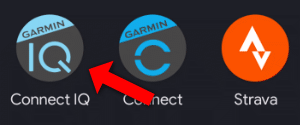
- Open the Connect IQ app on your phone.
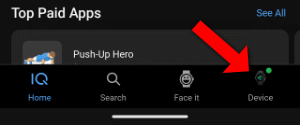
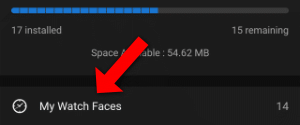
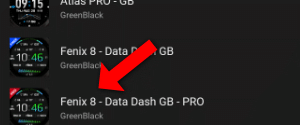
- Choose My Device → Watch Faces and then your watchface.
- Choose Settings, change what you want and save.
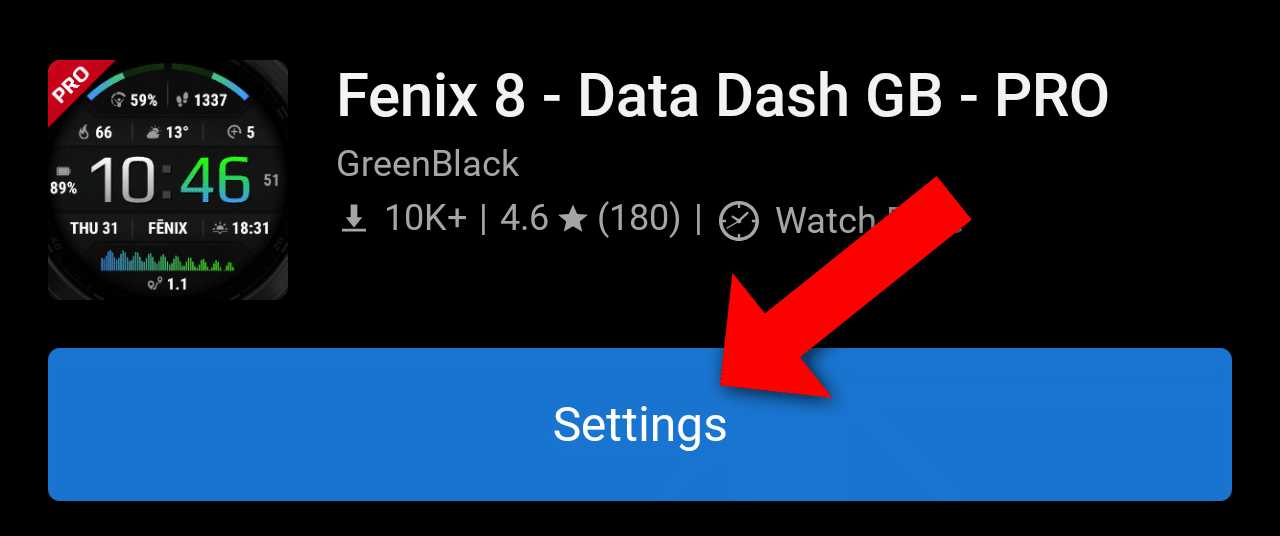
A save only works while this watchface is the one on your watch, and your watch is connected to your phone.
The note at the top of the page reminds you that most settings are on the watch. For those: On your watch, go to Menu → Watch Face → your watchface and choose Customize, edit, configure or the edit icon. The exact path and wording are slightly different on every model.
What is on the page
From top to bottom:
| Setting | What it does |
|---|---|
| Pro Code | Only in the free version. Activates PRO, and shows its status. |
| Theme | Applies a theme. |
| Currently loaded profile | The name of the active profile. You can't change it here. |
| Load Profile | Loads Profile 1 to 5, or makes a new one. |
| Options of the watchface | A few options of the watchface itself, like Hand Style on November Analog. |
| DATA FIELDS | For every field: what it shows, and its label. |
| FONTS | The font of every text, and its size on a watch with scalable fonts. |
| COLORS | Every color of the watchface, from a list of 64 colors. |
| PLUGIN FIELDS | Plugin 1 Field to Plugin 5 Field: the plugin data you can pick in a field. |
| Custom Text | The text of your Custom Text field. |
Choices that change nothing
| Choice | Where | What it means |
|---|---|---|
| As on watch (no change) | Fields, labels, fonts, watchface options | Keep what the watch has. You see it when the watch has something the list can't show, like a plugin field that isn't one of Plugin 1 to 5. |
| Custom (set on watch) | Colors | A color you set on the watch that isn't one of the 64. Saving keeps it. |
| No change | Theme, Load Profile | Nothing is applied or loaded. |
| None | Plugin 1 Field to Plugin 5 Field | This plugin has no field yet. |
| Lines with dashes, like --- Date and Time --- | All lists | Only titles. Choosing one changes nothing. |
Pro Code
Only in the free version. Type your code in Pro Code and save. The watch checks it, which can take a few minutes. Open the settings again later: the field then shows the status, like Status: Pro Active or Status: Invalid code. You can leave that text there, it's never used as a code.
Saving the same code again does nothing. To try it once more, enter it on the watch. See Free vs PRO & Activation.
Theme
Choose a theme and save. The list has the themes of your watch: AMOLED and MIP watches have different ones. After saving, Theme goes back to No change. See Themes.
A theme is applied last. So when you choose a theme and change a color in the same save, the theme wins. Save the theme first, then change the color.
Profiles
Currently loaded profile shows which profile is active. Everything you change on this page is saved in that profile, and replaces what it had.
Load Profile has Profile 1 to 5. The number is the position in the Profiles list on your watch, whatever the profile is called. After saving, it goes back to No change.
| You choose | What happens |
|---|---|
| A profile you have | It loads as it is. All other changes of that save are skipped, a theme too, so nothing in any profile is overwritten. |
| The profile that is already loaded | Nothing is loaded, your other changes are saved as usual. |
| A number you don't have yet | One new profile is made: a copy of the current one, with (copy) after its name. It is added at the end of the list and loaded, and the changes of that save go into it. Your current profile stays as it was. |
| Profile 3, 4 or 5 without PRO | Nothing is loaded, your other changes are saved as usual. These say [PRO] in the free version: without PRO you have 2 profiles. |
To change a profile you have: load it first and save. Open the settings again, so they show that profile, and then make your changes.
See Profiles for how profiles work.
Options of the watchface
Some watchfaces have a few of their own options here, under Load Profile. On November Analog this is Hand Style. The manual of your watchface explains them, like the November Analog manual.
Data fields
Under DATA FIELDS, every field of the watchface has a row with its name, like Top, followed by its label, like Top Label.
The field list has the categories of the watch, like --- Date and Time ---, and Plugin 1 to Plugin 5 at the end. The fields are the same as on the watch, see All Datafields.
- A field you change starts with its standard options and goal, like when you pick it on the watch. Its label, color overrides and offsets stay. A Text Label starts again with the short name of the new field.
- A field you leave alone keeps everything you set on the watch: its options, goal, label and offsets.
- Progress bars and rings have no label, and only list data that can show progress.
- The list is the same for every watch. A field your watch doesn't have is skipped.
- A field marked [PRO] works for an hour without PRO, the same as on the watch.
- The options of a field, like its unit or format, are on the watch. See Datafield Options.
The label of a field
The label list has two parts:
| Part | What you can choose |
|---|---|
| --- Labels --- | Icon, Text Label, No Label, and the special icons like Battery Icon, Status Icons or a weather icon. |
| --- Data Fields --- | Any data field as the label, for example the date next to the time. Plugin 1 to 5 work here too. |
The text of a Text Label, and the options of a field used as label, are on the watch. See Labels, Colors & Offsets.
Fonts
Under FONTS, every text of the watchface has a font, like Top Font. The list has the fonts of your watch, the same as the font picker on the watch, so it is different per watch model.
On a watch with scalable fonts, every font also has a Size:
| Size | What happens |
|---|---|
| 0 | As on the watch. A scalable font you choose keeps the size the text had, or gets its standard size. |
| 3 to 260 | The font gets this size. |
- The size only works for the scalable fonts, the ones after XTINY, TINY, SMALL, MEDIUM, LARGE and GLANCE in the list. Those have a fixed size.
- A watch without scalable fonts has no size setting.
See Fonts for the font picker on the watch.
Colors
Under COLORS, every color of the watchface has a list of 64 colors, from 0. Black to 63. White. See the Color list.
- For any other color, use the color picker on the watch. Such a color shows as Custom (set on watch) on your phone, and stays when you save.
- AMOLED watches have no Background Color here, the background stays black. MIP watches have it.
- The color overrides of a single field are on the watch. See Colors.
Plugin fields
The fields of plugins, like OWM Weather GB or Tides GB, are too many for every list. So a field has Plugin 1 to Plugin 5 at the end of its list instead.
- In a field or a label, choose Plugin 1.
- Scroll down to PLUGIN FIELDS and choose what Plugin 1 Field is. The fields are grouped per plugin, like --- Open Weather Map - GB ---.
- Save.
- Plugin 1 to 5 keep what you chose, so you can use them in more fields.
- A plugin field you picked on the watch shows as As on watch, unless it is one of Plugin 1 to 5.
- The plugin itself has to be installed, see Plugins Overview.
Custom text
Typing on a phone is easier than on a watch. At the bottom of the page, Custom Text is the text of your Custom Text field.
| Fields set to Custom Text | What happens |
|---|---|
| One | The setting shows its text. Your text replaces it. |
| More than one | Nothing changes, and the setting says Change on watch. Set each text on the watch. |
| None | Nothing changes. Set a field to Custom Text first. |
To remove the text, do that on the watch: an empty text on the phone changes nothing.
Good to know
- The phone shows what the watch last sent. The watch sends it when the watchface is on the screen after a change. So after changing things on the watch, go back to the watchface before you open the settings on your phone.
- Still on the watch only: field options, goals, offsets and color overrides, most time and hand options, the always-on display modes, touch shortcuts, renaming and removing profiles. See the Settings Menu Map.
- Nothing happened? See I changed something on my phone and nothing happened.