Touch & Shortcuts
On touch watches, press and hold part of your watchface to open something. Touch needs PRO, and turns on when you activate PRO.
Touch means a long touch: hold your finger on the screen for a few seconds. A short tap won't open anything, so keep your finger on the screen until the shortcut opens.
Turn touch on or off
Go to Advanced options → Touch options → Enable touch.
Shortcut per field
Most fields already open the matching Garmin screen, like Steps or Heart Rate. To change that, open the field in Data and choose Data Options → Long Press Shortcut.
Custom touch areas
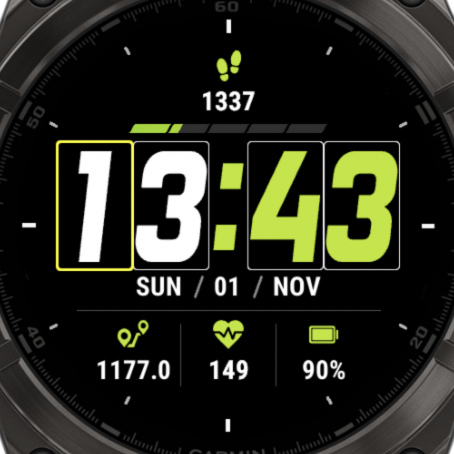
Your watchface also has touch areas that aren't fields, and these are different per watchface. No Excuses, for example, uses the characters of the time: each of the 4 digits is its own area, so each one can open something else. To set them, go to Advanced options → Touch options, then choose an area from the list, or Custom Shortcuts to pick it on the screen.
What a shortcut can do
- Next Profile, Previous Profile: switch profiles.
- Next Theme, Previous Theme, Generate AI Theme: change the theme.
- Refresh Data: update all fields right away.
- Open a Garmin screen: Calendar, Weather, Heart Rate, Steps, Sleep Score and many more. The list depends on your watch.
- Nothing: does nothing.
Touch areas are the same for all your profiles. Shortcuts per field are saved in each profile.