Picking a Datafield
Every field on your watchface can show the data you choose.
Change a field
- Open the watchface settings and choose Data.
-
Choose the field you want to change:
- Pick on screen shows your watchface with a box around each field. Tap a box, or use UP and DOWN and press ENTER.
- Or choose the field from the list below it.
- Choose the top row, Data, and choose a category.
- Choose the data you want. If a row says something like 4 options, it has variations to choose from.
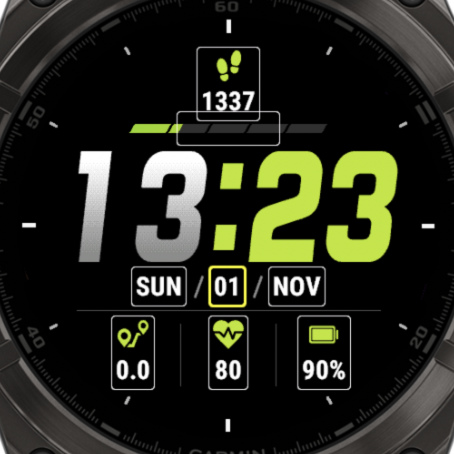
Categories
See All Datafields for everything you can choose.
Date and Time, Activity Info, Biometrics, Training Status, System, Environment, Garmin Weather, Sun and Moon, Twilight & Golden Hour, Plugins, and Custom. What you see depends on your watch.
What you may see next to a field
| In the list | What it means |
|---|---|
| [PRO] | This field needs PRO. You can try it for an hour, then it shows PRO instead of its value. See Free vs PRO |
| Not Installed | This field needs a plugin app that isn't on your watch yet. See Plugins |
After choosing a field
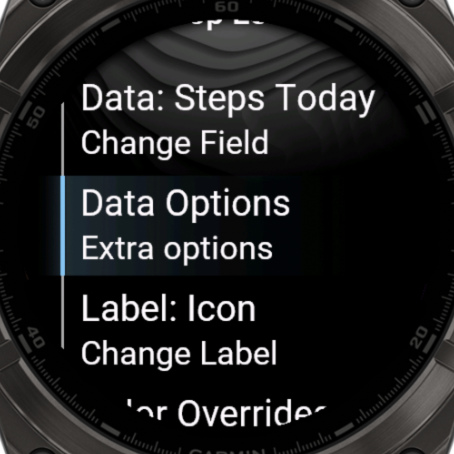
Back in the menu of the field, you can change more:
- Data Options: format, units and how often it updates. See Refresh Time
- Label: an icon, your own text, or even a second data field
- Color Overrides: a text and label color for this field only
- Offsets: move the data or label by a number of pixels
Good to know
- Progress bars and rings only list data that can show progress.
- To remove a field, choose Nothing (remove) in the Custom category.