This page is for watchfaces with their settings on the watch. Are your settings in the Connect IQ app? See the Classic version of this page.
Always-On Display
On AMOLED watches, your watchface can stay visible when you lower your wrist. Garmin limits how bright that screen can be, so the settings here help you stay within that limit.
How Garmin limits it
To prevent burn-in and save battery, Garmin allows a maximum of 10% brightness over all pixels combined. If your watchface goes over that, the screen turns off.
So it adds up. A few bright pixels are fine, and many dim pixels are fine, but many bright pixels aren't. Big fonts, bright colors and lots of fields all count. Outlined fonts light up fewer pixels, so they lower the average.
If you're right on the edge of 10%, the screen can turn off after a while, for example when a field gets a longer value and just crosses the limit. Once Garmin has blocked the always-on display, it won't turn on again by itself. To reset it, open the settings menu of the watchface and go back.
Save battery
More lit pixels and more brightness also use more battery. Your watch is in always-on mode most of the time, so this is where you can save the most battery.
The settings
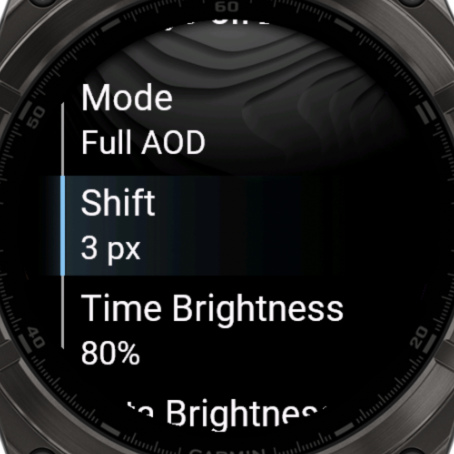
Go to Advanced options → Always-On Display. These settings are in your profile, except Shift.
| Setting | What it does |
|---|---|
| Mode | Screen off, Full AOD, Time only, Time only moving, Time + data field, or Time + data field moving. The moving modes move the time around the screen. |
| Data Field | The field to show, in the modes with a data field. See Picking a Datafield. |
| Shift | Moves the screen a few pixels every minute to prevent burn-in, up to 10 pixels. Off keeps everything in place. |
| Time Brightness | How bright the time is. |
| Data Brightness | How bright everything else is. |
| Data Color Filter | A tint color for your data. White keeps the colors as they are. |
In Time options you can also set the Hour AOD Font, Minute AOD Font and AOD Time Color.
Does your screen turn off?
Then you're over the limit. Try these, in this order:
- Lower the Data Brightness.
- Use an Outlined AOD font, which lights up far fewer pixels. See Fonts.
- Lower the Time Brightness.
- Use a darker Data Color Filter or AOD Time Color.
- Choose a mode that shows less, like Time only.
Then open the settings menu and go back to turn the always-on display on again.
Turn it on or off on your watch
The always-on display itself is a setting of your watch, usually in System → Display. It uses more battery.