
Fenix 8 Solar
Download Options
 Free Version
Purchase Watchface - $2.99


Fenix 8 Solar - GB - Manual
Table of Contents
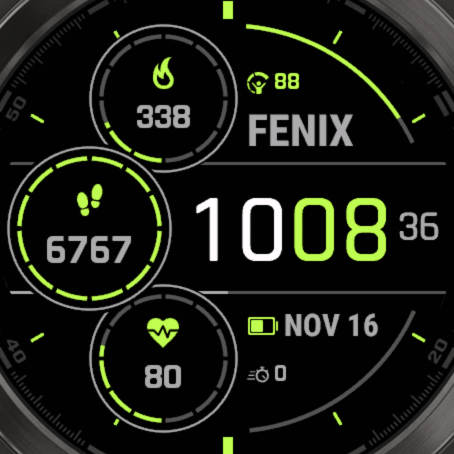
The watchface
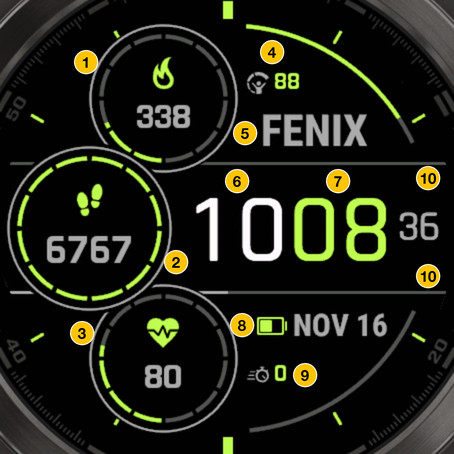
| # | What it is | Settings section |
|---|---|---|
| 1 | Top circle | Circles: Circle Top |
| 2 | Middle circle | Circles: Circle Center |
| 3 | Bottom circle | Circles: Circle Bottom |
| 4 | Top progress bar field | Progress Bars: Progress Bar Top |
| 5 | Title | Title / Subtitle: Title |
| 6 | Hours, also the Hours touch shortcut | Time Settings, Touch Actions |
| 7 | Minutes, also the Minutes touch shortcut | Time Settings, Touch Actions |
| 8 | Title 2 (the date) | Title / Subtitle: Title 2 (date) |
| 9 | Bottom progress bar field | Progress Bars: Progress Bar Bottom |
| 10 | The two center lines, each can show a progress | Title / Subtitle: Center line Progress |
Each circle shows a value, an icon or label, and a progress ring. To the right of the time are the seconds or am/pm.
Where the settings are
Almost all settings are in the Garmin Connect IQ app on your phone: open the app, go to your watchfaces, choose Fenix 8 Solar and then Settings. See Edit watchface settings if you can't find them. The settings are grouped in sections, such as Color Settings, Time Settings, Progress Bars, Circles and Title / Subtitle.
A few things are also on the watch. Go to Menu → Watch Face → Fenix 8 Solar and choose Customize (or edit, configure or the edit icon, depending on your watch). You'll find:
- Info: version, device ID, PRO key (free version), and the reset buttons (Reset OWM, Reset Settings)
- Complications from Apps: pick data from other apps on your watch (two slots, on watches that support it)
- Color Themes: all themes and the AI Generator
- Primary Color: the default theme in another color
- Color Presets and Field Presets: save and load your setups
Fields and labels
Every field can show any data from the list: steps, calories, heart rate, Body Battery, weather, time zones, sport totals, your own text and much more. Each field has a Data setting and a Label setting next to it.
Label options
- Icon, Label, Short Label or Unit
- Weather Icon, Moon Phase Icon or Battery Icon
- Or any other data field, so one field shows two values
- Nothing hides the label
More data
- Weather: choose the source in Weather Source. OpenWeatherMap with your own free key, or the apps OWM Weather GB or YR Weather GB, and tides from Tides GB
- Glucose from CGM+
- Data from other apps: choose Complications from Apps on the watch, then pick the app. See Show data from other apps.
A ring or bar only fills when the data has a goal, such as steps. Set your own goals in the Goals section. See Datafields Overview for every field.
Themes and colors
AMOLED watches have 17 themes, all with a black background. MIP watches (the always-readable screens: Fenix 7, Fenix 8 Solar, Fenix 9 Pro Solar, Enduro 3 / 4, Forerunner 255 and 955) have 20: the first five, plus fifteen made for MIP screens. Most of those are the AMOLED themes in stronger colors, with a dim circle outline so the progress stands out. One has a white background. See all of them on the themes page.
- Load a theme: on the watch choose Color Themes, or in the Connect IQ app choose a Theme in Color Settings and save.
- AI Generator: makes a random theme. On the watch you stay in the menu, so select it again for another one until you like it.
- One color: Primary Color on the watch, or Override Primary Color in the app, gives the default theme the color you pick.
- Every color by itself: background, dial, background lines, hours, minutes, seconds, and the colors in the section of each field.
A theme replaces all your colors. Want to keep your own? Save them to a color preset first.
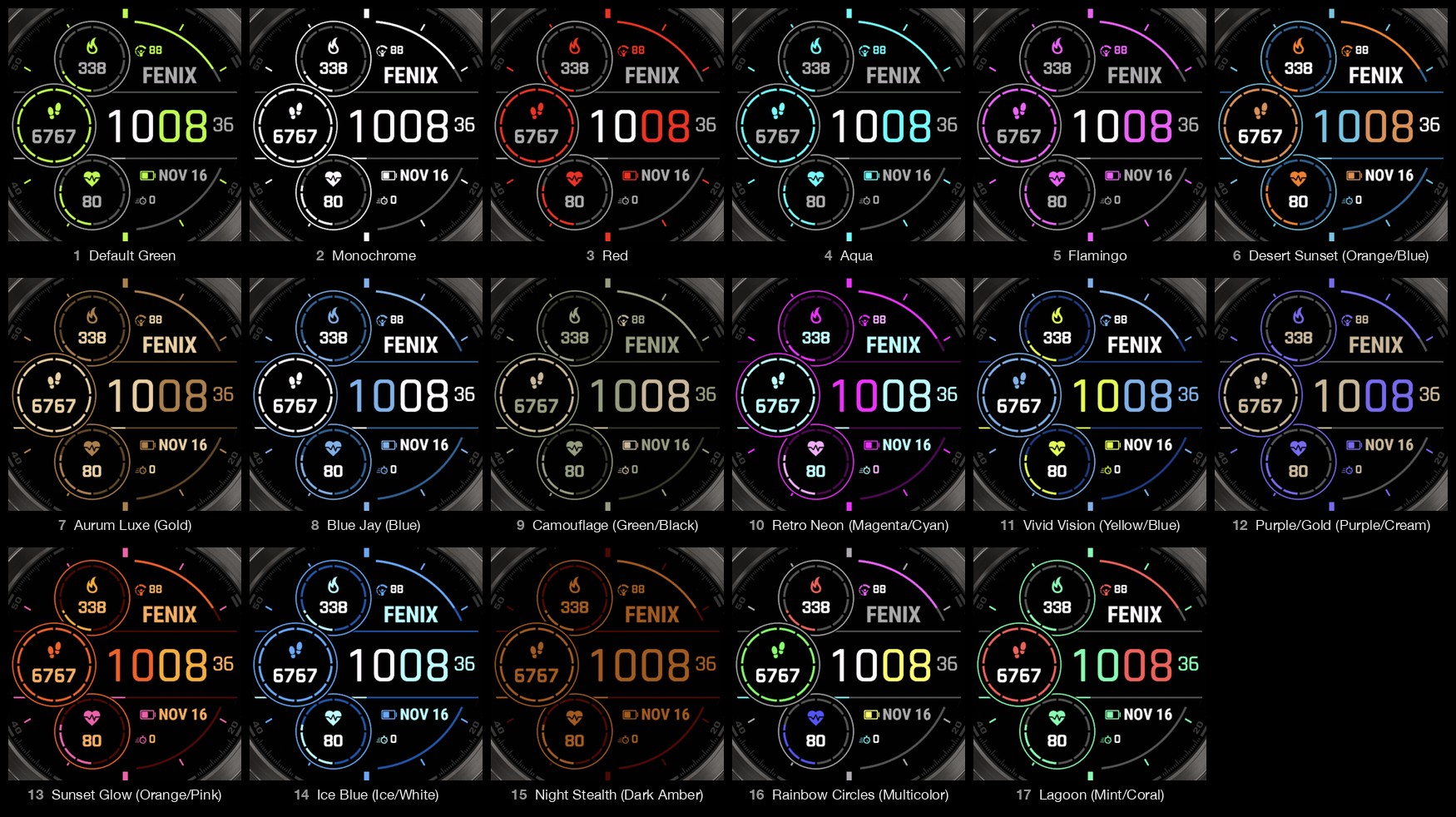
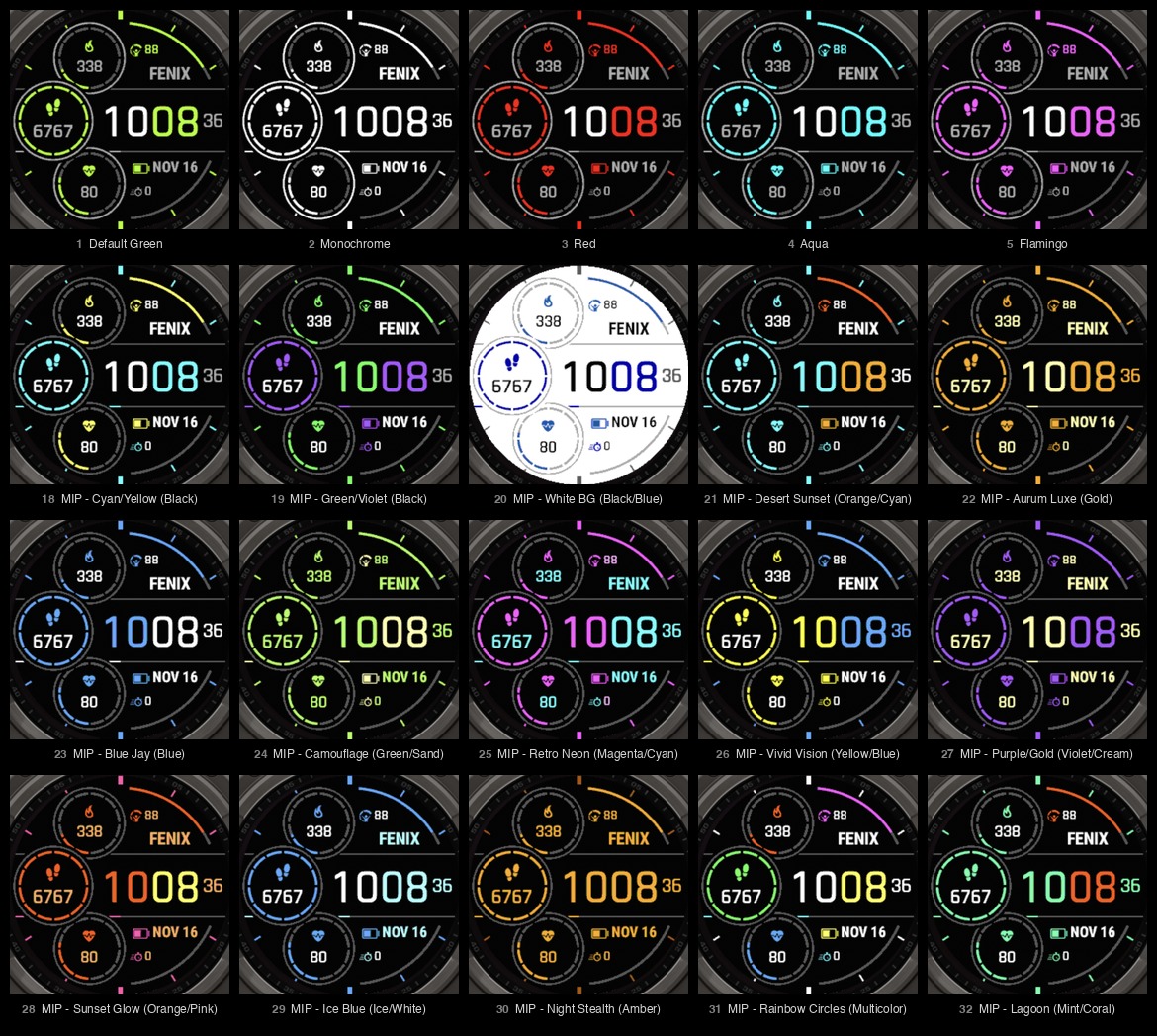
AI Generator examples
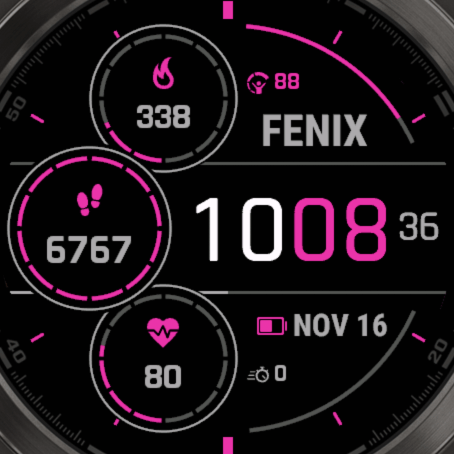
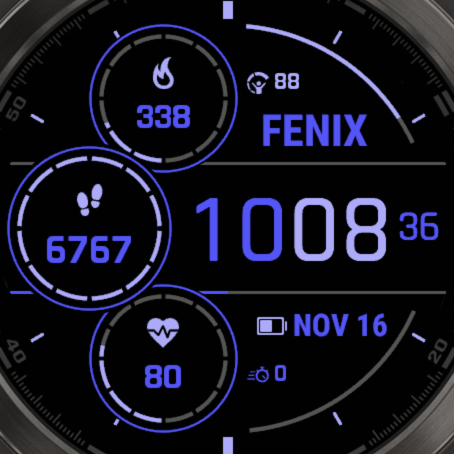
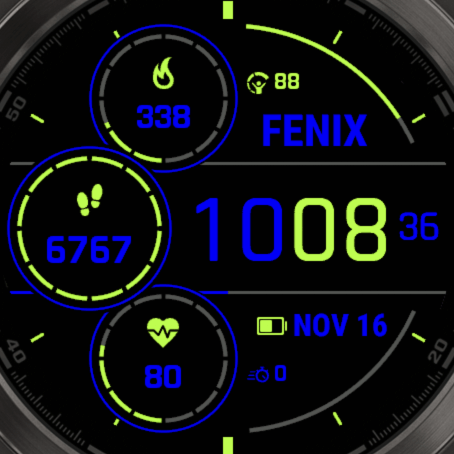
Presets
There are two kinds of presets, five of each:
- Color presets: all your colors
- Field presets: your fields, labels and layout, such as fonts, sizes, title alignment and bar thickness
- Set up the watchface the way you like it.
- Save it: on the watch open Color Presets or Field Presets and choose Save Colors 1 to 5 or Save Fields 1 to 5, or in the Connect IQ app choose Presets in Color Settings and pick Save to Color Preset or Save to Fields Preset.
- Load it later the same way with Load Colors or Load Fields.
You can save all five of each kind. Loading presets 1 and 2 is free, loading 3 to 5 needs PRO. Presets are stored on the watch. With touch you can also switch presets from the watchface, see Touch.
Touch
Touch works on watches with a touchscreen. Hold your finger on the watchface for about 3 seconds:
- On a field: opens the app or glance that belongs to that data, when your watch has one.
- On the time: the hours (left) and the minutes (right) each have their own shortcut. Set them in Touch Actions: open the app or glance of a data type, open one of your Complications from Apps, start / stop / reset the timer, or load the next color preset, field preset, or both.
Touch is a PRO feature. Turn on Enable Touch in Touch Actions. The timer shortcut works without PRO and with touch off.
Time options
In Time Settings:
- Time Font: the Fenix Solar font, or a system font of your watch. Some fonts can be resized, but not on every watch.
- Spacing and position: move the hours and minutes closer together, or move the time up, down, left or right.
- Right of Time Center, Top and Bottom: seconds, am/pm or nothing. Set Center to Nothing to use a top and a bottom item instead.
- Always on seconds: MIP watches only.
The 12 or 24 hour clock is set with Use 24 hour clock. The hours and minutes have their own colors in Color Settings.
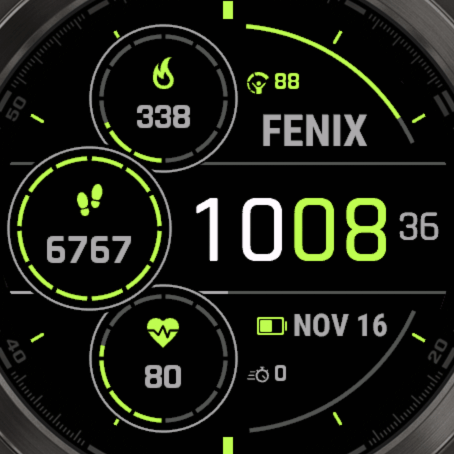
Title alignment
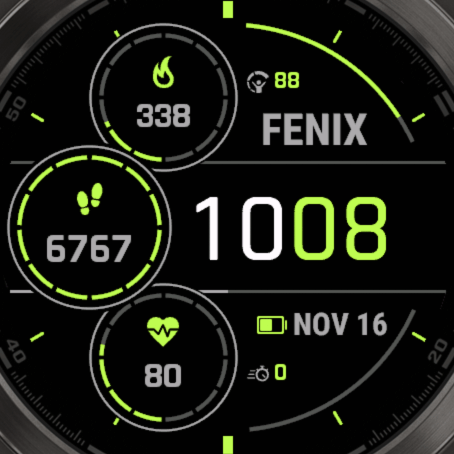
In Title / Subtitle, Title Alignment puts the title and the date on the right (default), or on the left, lined up with the progress bar fields.
Always-On Display
In AOD Settings:
- Always on display AOD: Turn screen off, Full screen AOD (no seconds), Time Only, Time + Date fields, or Time + Circles
- AOD Dimming Level (AMOLED watches only): if the screen turns off during AOD, set a higher number. A lower number is brighter and uses more battery.
MIP watches use the same setting for what they show while the watch is not in use (first option there: Full screen). On AMOLED watches, always-on must also be turned on in the display settings of your watch. See Always on display.
Instinct Crossover hand highlights
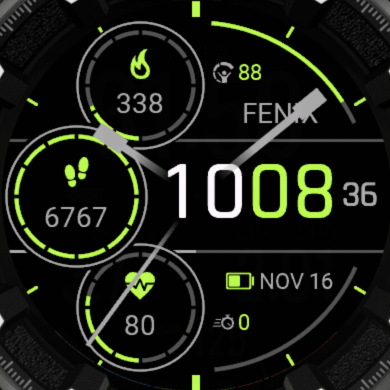
On the Instinct Crossover AMOLED, the screen can light up under the physical hands. These settings are in their own section, Hand Highlights:
- Hand Highlight: no highlight, fade out, solid or transparent (each thin, medium or wide), or tip only
- Second Hand Highlight: no highlight, fade out or a solid line
- Colors for the hour, minute and second hand
- Hand Highlight in AOD: hide, same colors, green, red, blue, dimmed or dimmed more
Free and PRO
The watchface is free. A PRO key unlocks:
- Options and data fields marked [*]
- Touch
- Loading presets 3 to 5
After buying, enter your key in Pro Key at the top of the settings in the Connect IQ app. See Activate your Watchface and PRO vs Non Pro.
What's new in 26.11.16
A big update: Fenix 8 Solar now has the same features as the other GB watchfaces. Your settings are converted on the first start.
New
- Many more data fields, plus OWM Weather GB, YR Weather GB and Tides GB
- Time zones by city, with daylight saving time handled for you
- Sharper icons on every watch. Two look different now: the flame and the battery are outlines
- 12 more themes on AMOLED watches, 15 more on MIP watches, and the AI Generator
- Color presets and field presets
- Title alignment: left or right
- Touch: a field opens its own app, and the time has two shortcuts (hours and minutes) instead of the old 3x3 grid
- Support for Fenix 9 Pro 51mm, Approach S72 and Enduro 4
- Hand highlights on the Instinct Crossover AMOLED
- Cleaner background lines and dial marks
Kept for you
On the first start after the update, these are carried over: your fields, labels, colors, fonts, goals, units, time format, custom texts, custom colors, OWM key and PRO status. Your old center and right touch shortcuts become the hours and minutes shortcuts.
Please check
- Pick your Complications from Apps again on the watch.
- The other seven zones of the old touch grid are gone, because a field now opens its own app.
- The third alternative time zone and the "use custom format" switch per time zone no longer exist.
- The fields that showed the alternative or local hour and minute as a hand position (0 to 360) are gone. A field that used one is now empty, so pick another.
- A field without a goal now shows an empty ring.
- Weather needs one refresh after the update, so it can be empty for a short while.
- On small MIP screens the background lines are 2 pixels wide (was 1).
Supported watches
- Fenix: 7, 7S, 7X (also the Pro versions), Fenix E, 8 (43 / 47 / 51 mm), 8 Pro (47 / 51 mm), 8 Solar (47 / 51 mm), 9 (43 / 47 / 51 mm), 9 Pro (43 / 47 / 51 mm), 9 Pro Solar (47 / 51 mm)
- Epix: Epix 2, Epix 2 Pro (42 / 47 / 51 mm)
- Enduro: 3 and 4
- Forerunner: 70, 165, 170, 255, 255S, 265, 265S, 570 (42 / 47 mm), 955, 965, 970, and the Music versions of the 165, 170, 255 and 255S
- Venu: 2, 2S, 2 Plus, 3, 3S, 4 (41 / 45 mm)
- Vivoactive: 5 and 6
- Approach: S50, S70, S72
- D2: Air X10, Mach 1, Mach 2, Mach 2 Pro
- Descent: G2, Mk3 / Mk3i (43 / 51 mm)
- MARQ: MARQ 2, MARQ 2 Aviator, MARQ 3
- Instinct: Instinct 3 AMOLED (45 / 50 mm), Instinct Crossover AMOLED
The full list is on Supported Devices.
More documentation
This manual only covers what is specific to Fenix 8 Solar. These pages explain the rest:
- Datafields Overview: every field you can pick
- Custom Date/Time formats: show the date or time exactly the way you want
- Alternative Timezones: the time in another city
- Timer: a simple timer on your watchface
- Presets: more about saving and loading
- Weather Overview: the weather sources and how to set them up
- Crashes / Reports: what to do when something doesn't work
Have a question? See the Frequently Asked Questions.