 Free Version


Xmas Jumper - GB - Manual
Table of Contents
- The watchface
- Opening the settings
- Data fields
- Fields per band
- Dividers
- Days to Christmas
- Band design
- Borders and the ribbed cuff
- Sweater on or off
- Christmas lights
- Time and the knitted fonts
- Colors
- Themes
- MIP watches
- Always-On Display, AMOLED watches
- Touch areas
- Settings on your phone
- Instinct Crossover
- Supported watches
- Free and PRO
- Questions and troubleshooting
- More documentation
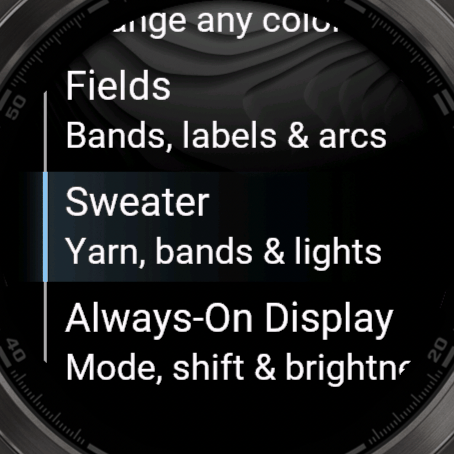
The watchface
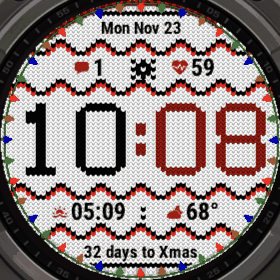
A knitted Christmas jumper fills the screen, in bands from top to bottom:
- Date band at the top: the date, such as Fri Nov 13.
- Top data band: 1, 2 or 3 data fields, each with its icon next to the value.
- Time: the hour and minute knitted in one big line across the middle, HH:MM.
- Bottom data band: 1, 2 or 3 more data fields.
- Countdown band at the bottom: the days to Christmas, such as 42 days to Xmas.
- Two yarn arcs along the top and bottom edge. They show the progress of a field, such as your battery.
- Christmas lights all around the edge, steady or walking. See Christmas lights.
Between the bands runs a knitted border, with a ribbed cuff above the date and below the countdown, like the hem of a real jumper.
Opening the settings
All settings are on the watch. The basics are also in the Connect IQ app on your phone, see Settings on your phone.
On your watch, go to Menu → Watch Face → Xmas Jumper and choose Customize, edit, configure or the edit icon. The exact path and wording are slightly different on every model.
Your settings are stored on the watch. They usually stay when you reinstall the watchface, but this isn't guaranteed.
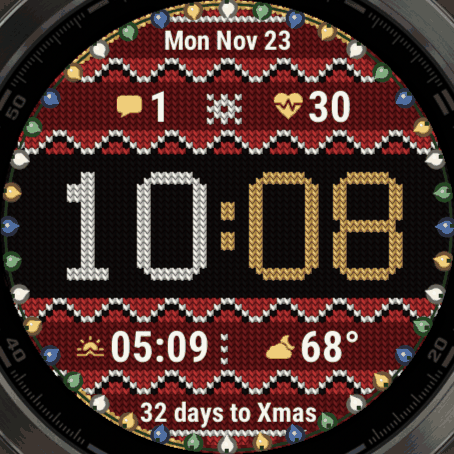
The menus of this watchface are at the end of Advanced options:
- Fields: how many fields each band has, the dividers, and the data of every field. See Data fields.
- Sweater: sweater on or off, the band design, the border, the divider, the Christmas lights and the yarn colors. See Band design.
- Always-On Display, on AMOLED watches. See Always-On Display.
- Hand Highlights, only on the Instinct Crossover. See Instinct Crossover.
The time font and the time colors are in Time options. See the Settings Menu Map for the rest of the menu.
Data fields
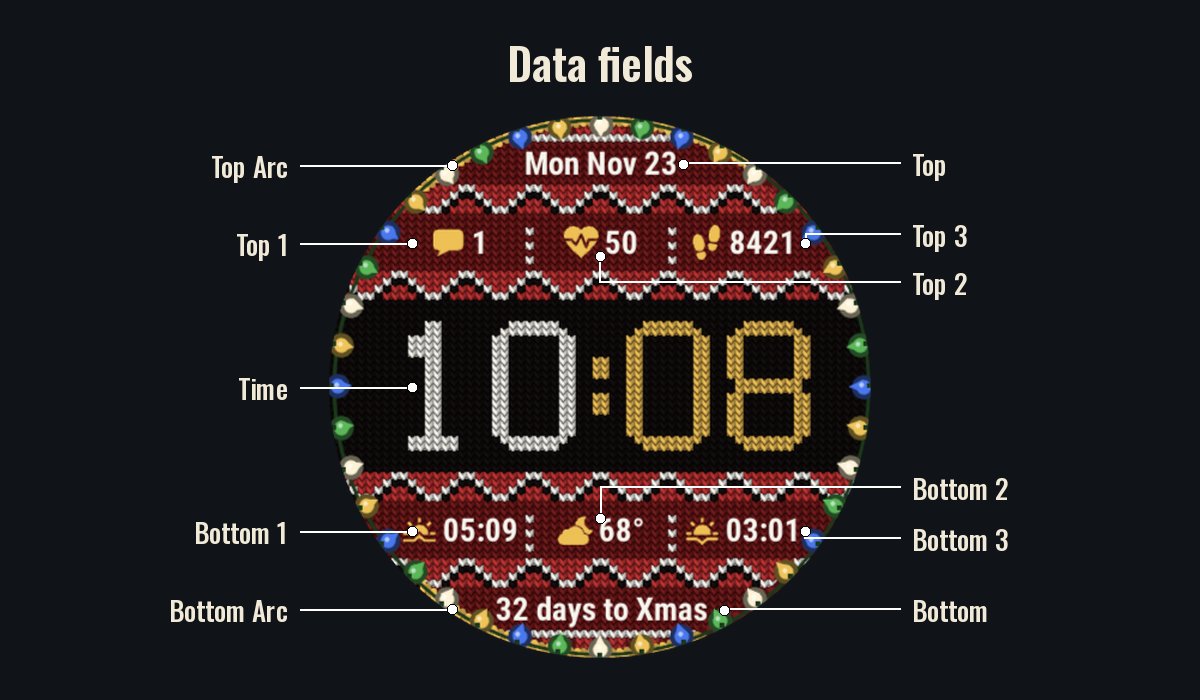
Xmas Jumper has 10 fields. This picture shows where each one is:
| Field | Where it is | Default |
|---|---|---|
| Top | The date band at the top | Day Month Day, such as Fri Nov 13 |
| Top 1 | The first field of the top band | Notifications |
| Top 2 | The second field of the top band | Heart Rate |
| Top 3 | The third field of the top band, only with 3 fields | Steps |
| Bottom 1 | The first field of the bottom band | Sunrise |
| Bottom 2 | The second field of the bottom band | Temperature, with the weather icon |
| Bottom 3 | The third field of the bottom band, only with 3 fields | Sunset |
| Bottom | The countdown band at the bottom | Days to Christmas |
| Top Arc | The yarn along the top edge, progress only | Battery |
| Bottom Arc | The yarn along the bottom edge, progress only | Body Battery |
Each band shows 2 fields to start with, so Top 3 and Bottom 3 are hidden until you give a band 3 fields. See Fields per band.
Changing a data field
- Open Advanced options → Fields, or Data in the main menu.
- Choose the field you want to change, or choose Pick on screen and select it on the watchface.
- Choose the Data row, then a category, then the field you want.
- Use Data Options for its format, units and refresh time.
The Fields menu lists the fields in the order of the screen, with the data each one shows now. It only lists the fields you can see: a band with 1 field has only its first field in the list.
See Pick a Datafield for the field picker, and All Datafields for every field you can pick.
Band fields
A field in the top or bottom band shows its icon left of the value. The value is in the Text Color, the icon in the Icon Color.
A band with 1 or 2 fields uses the big Value Font, a band with 3 fields the smaller Label Font. A value that is too wide for its place is written in the Label Font, and if that is still too wide it is cut off.
Top and Bottom
The date band and the countdown band show their field in the Label Font, with its icon if it has one.
Their ends lie under the yarn arcs, so a long text has a little less room than the band seems to have. Very long text is cut off.
Yarn arcs
The arcs only show progress, so you can only pick data that has it. Both fill from left to right.
The filled part is twisted yarn in the Icon Color. The rest is in the dark shades of the Sweater Color. For heart rate, stress, battery and body battery, Zone Color Bar in the field's Color Overrides knits the filled part in the color of its zone. See Zone Colors.
See Goals & Progress Bars to set your own goal for an arc, Labels, Colors & Offsets to change the icon or color of a single field, and Custom Date & Time Formats to show the date in another format.
Fields per band
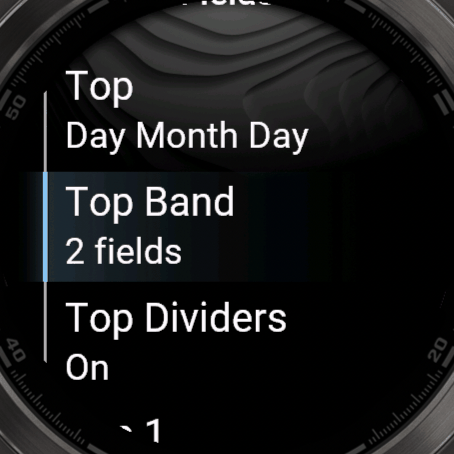
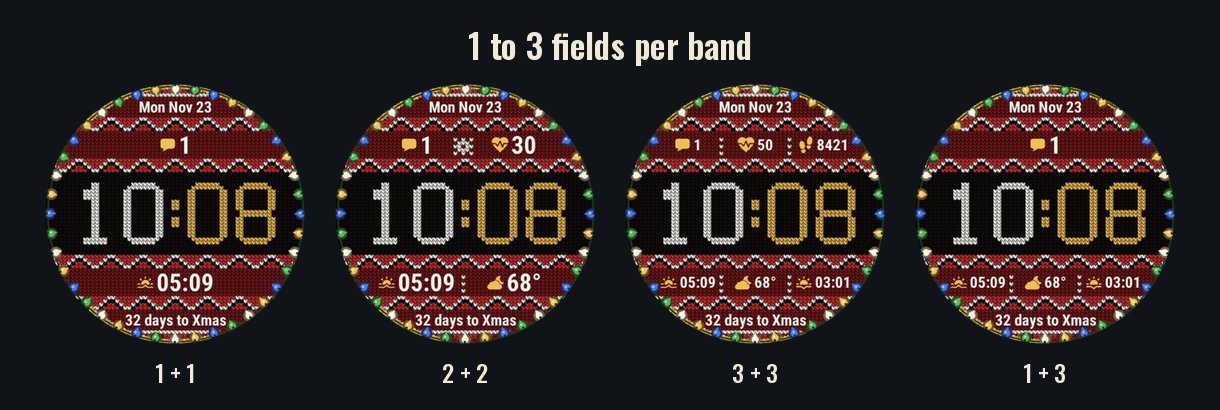
In Advanced options → Fields, Top Band and Bottom Band set how many fields each band shows: 1, 2 or 3. The default is 2 for both. Select the row to switch.
| Fields | Top band shows | Bottom band shows | Font |
|---|---|---|---|
| 1 | Top 1, in the middle | Bottom 1, in the middle | Value Font |
| 2 | Top 1 and Top 2 | Bottom 1 and Bottom 2 | Value Font |
| 3 | Top 1, Top 2 and Top 3 | Bottom 1, Bottom 2 and Bottom 3 | Label Font (smaller) |
A field you hide keeps its data: give the band more fields again and it comes back as it was. The number of fields and the dividers of each band are also in the settings on your phone.
Dividers
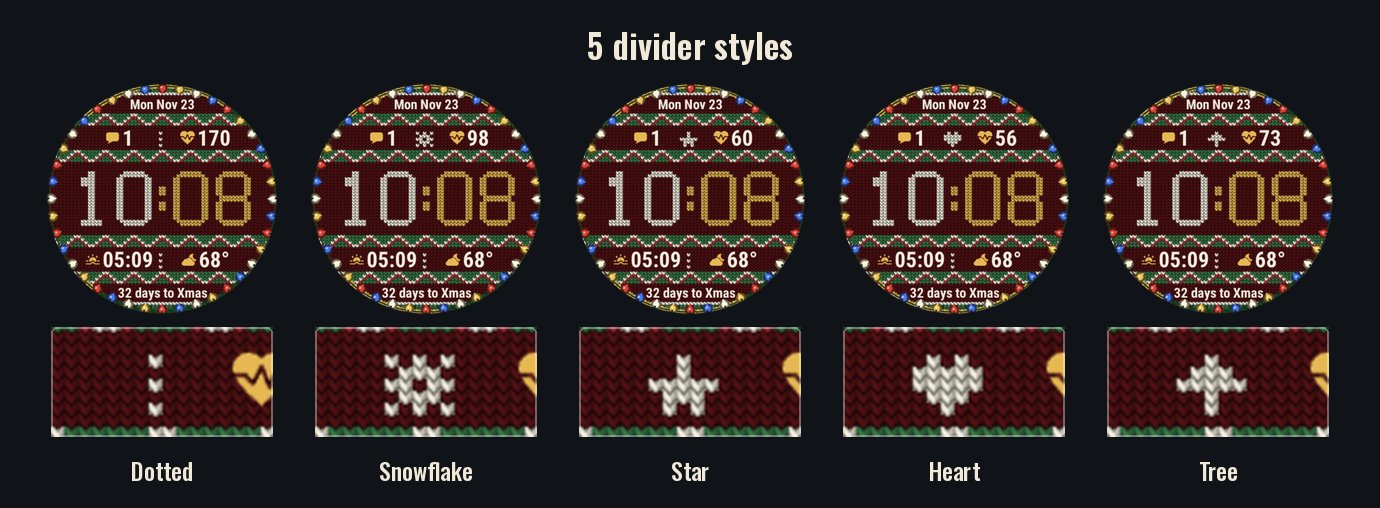
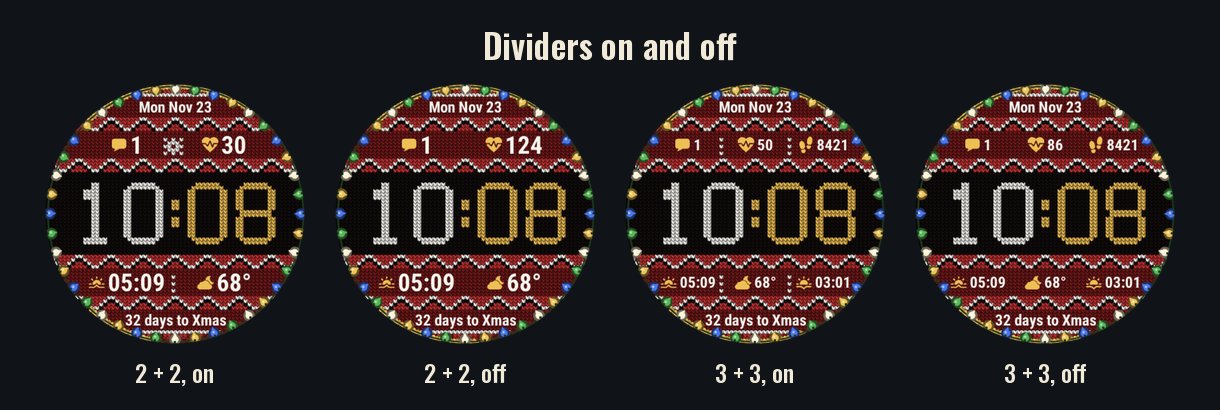
With 2 or 3 fields, a small knitted divider separates the fields of a band. It is knitted in the yarn of the band's frame.
- Top Dividers and Bottom Dividers in Advanced options → Fields switch them On or Off per band. They are on by default. The row is only there when the band has 2 or 3 fields.
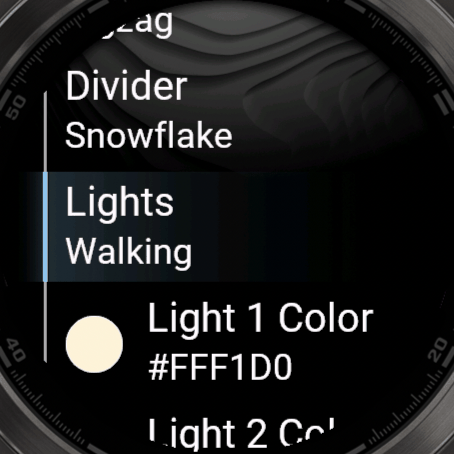
- Divider in Advanced options → Sweater sets the style: Dotted, Snowflake (the default), Star, Heart or Tree. One style for both bands.
When you see dots instead of a motif
A snowflake, star, heart or tree needs some room, so the watchface uses the dotted line instead:
- in a band with 3 fields: there is no room for a motif between three values.
- in a band with a wide value, such as a time like 04:58 in the big Value Font. The band then gets the dotted line so the value can keep its size. When the value gets shorter again, the motif comes back.
Days to Christmas
This field is only on the Xmas watchfaces. It shows how many days are left until December 25, such as 42 days to Xmas. From December 26 it counts down to next Christmas.
- December 24 shows 1 day to Xmas.
- December 25 shows Merry Xmas! in the whole field, in the language of your watch, such as Frohe Weihnachten! or Joyeux Noël !
- Find it in the category Special when you choose the data of a field.
- The words after the number start in the language of your watch. They are the Text behind Value in its Data Options: change them to anything you like, or remove them to show only the number. With your own words, or only the number, December 24 and 25 show the number like any other day (1 and 0).
- When the text is too long for the band, the watchface shortens it by itself: first "days" becomes "d" (42d to Xmas), and if that is still too long only the first word stays (42d).
- It's in the countdown band at the bottom by default. You can put it in any field of the bands too, where a short Text behind Value works best.
- It has no progress, so it can't go on a yarn arc.
The field is in the free version, it doesn't need PRO.
Band design
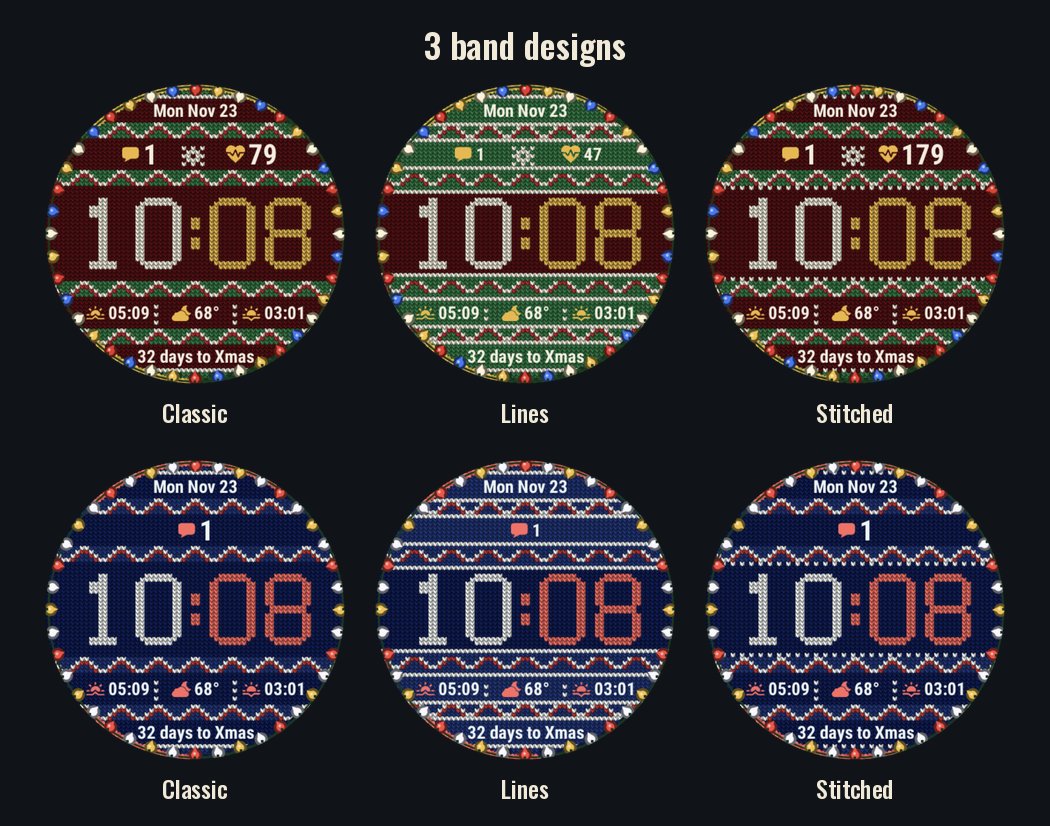
Find these in Advanced options → Sweater. Band sets the design of all five bands at once (date, top fields, time, bottom fields, countdown):
- Classic (the default): solid knitted bands with a frame row along their edges. The fields use the big Value Font.
- Lines: slimmer bands, outlined by two knitted lines with the sweater showing between them. The fields use the smaller Label Font, and the lines sit close around the time. More of the sweater and its border shows.
- Stitched: like Classic, but every frame, also the one around the time, is a dotted line of stitches.
The Sweater menu also has Sweater (on or off), Border, Divider, Lights (see Christmas lights) and the five yarn colors: Sweater Color, Pattern Color, Accent Color, Time Panel Color and Band Color. See Colors.
A theme doesn't change the band design, the border, the divider or the lights mode. They are also in the settings on your phone.
Borders and the ribbed cuff
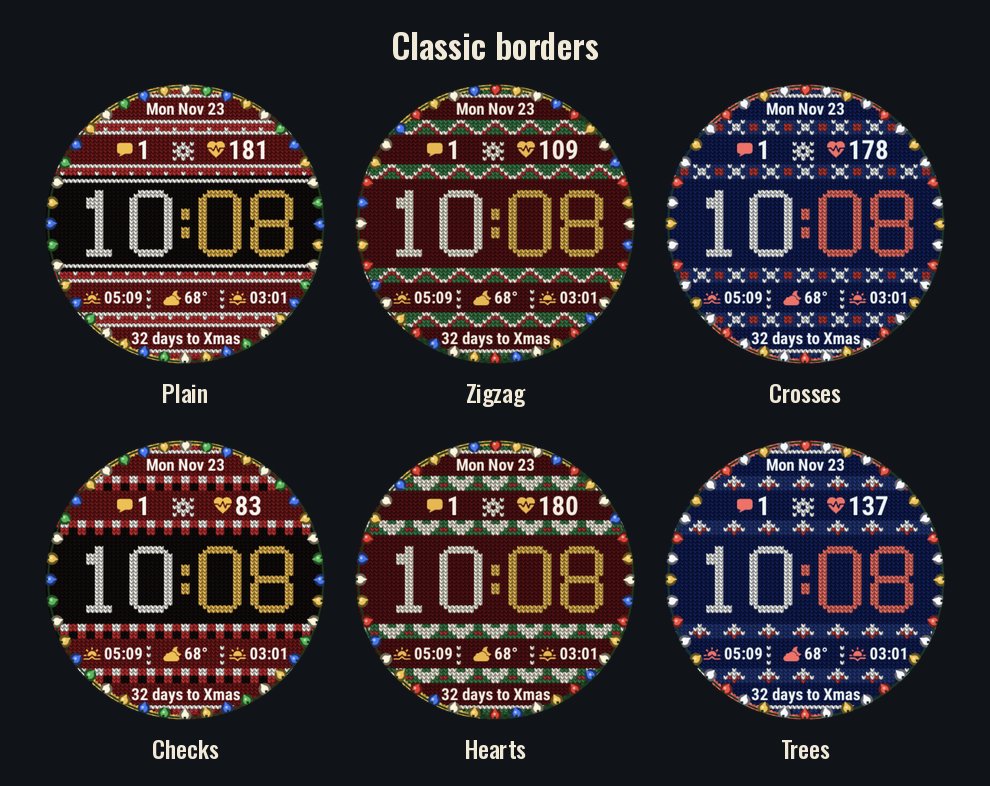
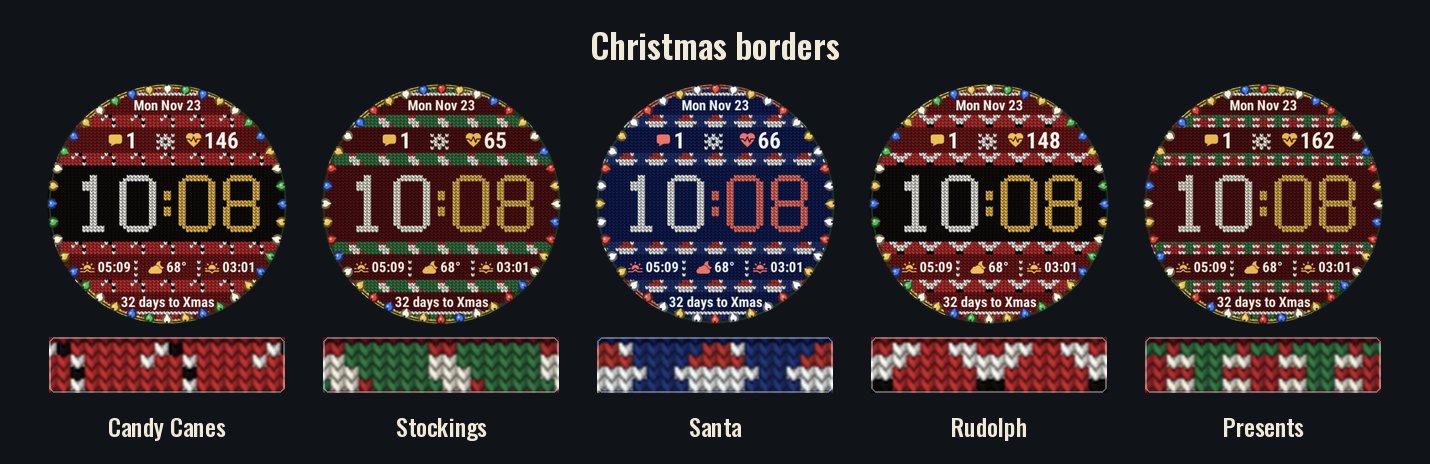
Border in Advanced options → Sweater sets the Fair Isle pattern that is knitted between the bands. There are 11:
Classic patterns
- Plain: no pattern, only a row of dots in the gaps, and no ribbed cuff
- Zigzag (the default)
- Crosses
- Checks
- Hearts
- Trees
Christmas motifs
- Candy Canes
- Stockings
- Santa
- Rudolph
- Presents
A border is knitted in two yarns: the Pattern Color for the motif and the Accent Color for its details, on the Sweater Color. The motifs are mirrored around the middle of the screen, so the pattern looks the same on the left and the right. With the Classic band design the border is also the edge of the time band. With Lines it sits between the lines of the bands.
Ribbed cuff
With any border except Plain, the rows above the date and below the countdown are knitted as a rib, two stitches up and two down, like the cuff of a jumper. The rib is in the darkest shades of the Sweater Color, and the yarn arcs run over it.
Sweater on or off
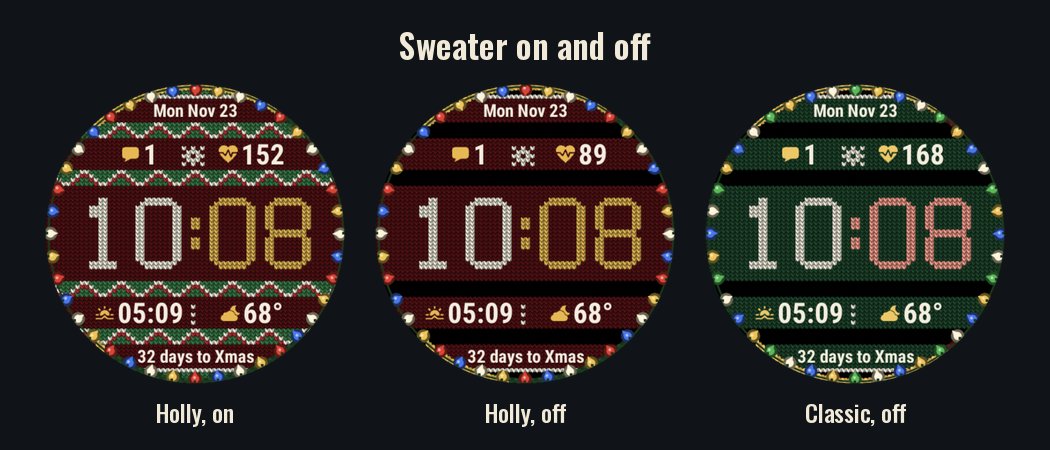
Sweater in Advanced options → Sweater is On (the default) or Off, black background.
With the sweater off, the knitted background goes black, and so do the border and the ribbed cuff. The bands, the knitted time, the dividers and the yarn arcs stay. It gives a calmer look, and on AMOLED a darker screen.
Christmas lights
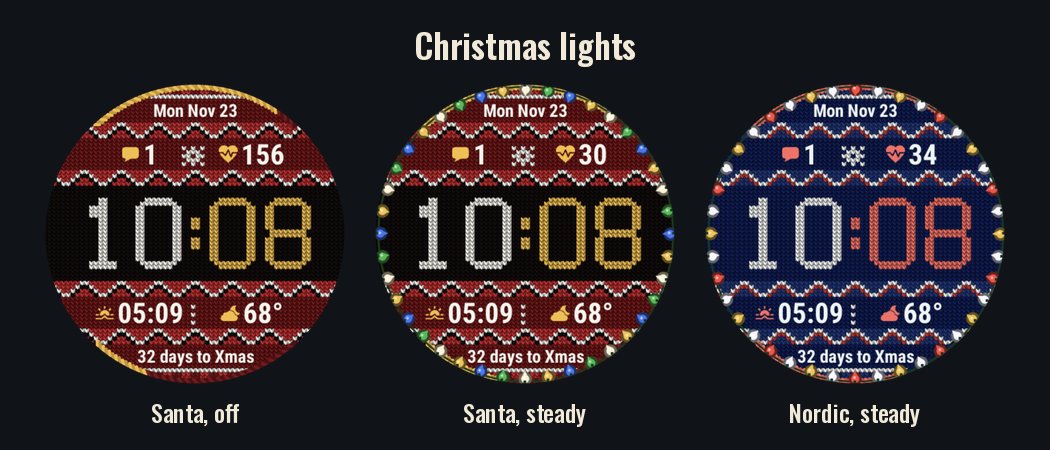
A string of colored bulbs hangs all around the edge of the screen, over the sweater and the yarn arcs. Lights in Advanced options → Sweater sets how they shine:
- Off: no lights.
- Steady: every bulb keeps its color.
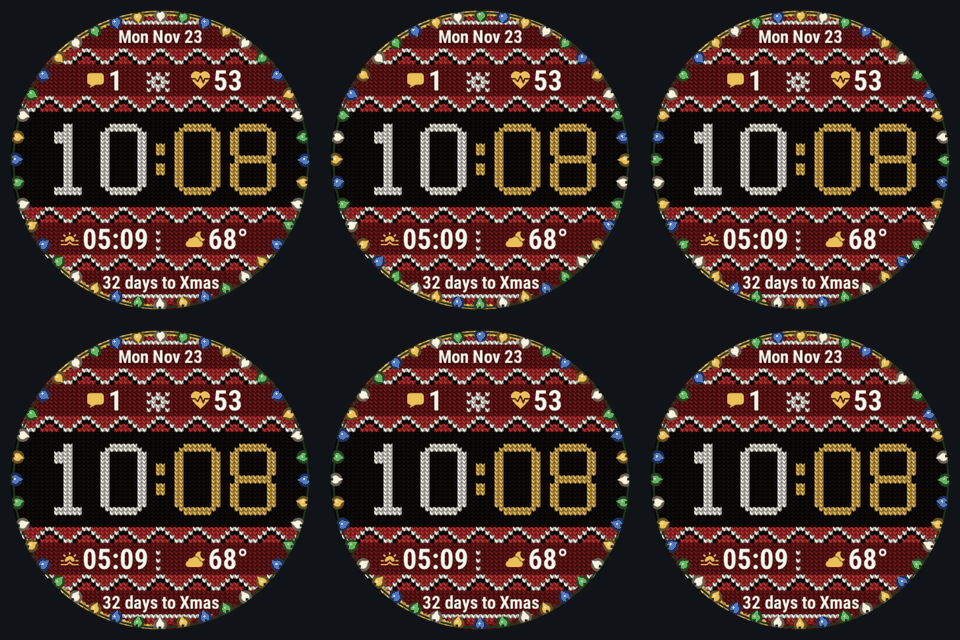
- Walking (the default): the colors move one bulb along the string every time the screen updates, so they chase around the edge. That is every second after you raise your wrist, and on a MIP watch once a minute after that.
The bulbs take the 4 Light Colors in turn. Every theme has its own matching bulb colors. With the lights on, Light 1 Color to Light 4 Color are in the Sweater menu, so you can pick your own. See Colors.
On AMOLED the bulbs glow and have a little shine. The lights are off on the always-on display, to keep it dark. The lights mode is also in the settings on your phone, as Christmas Lights.
Time and the knitted fonts
Open Time options in the settings. You see a preview of the knitted time at the top, with these rows below it:
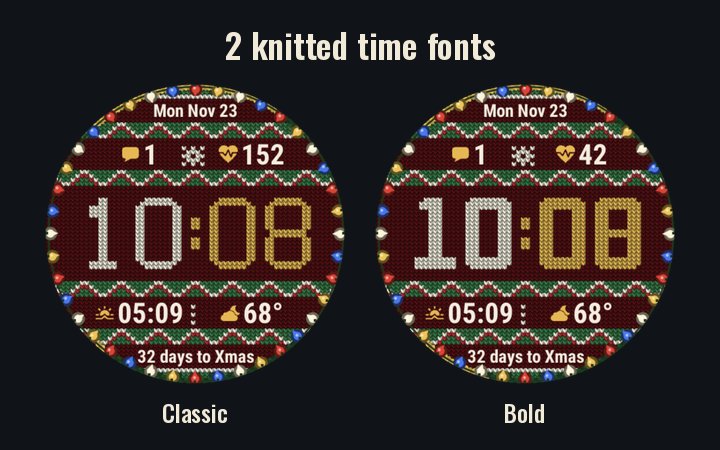
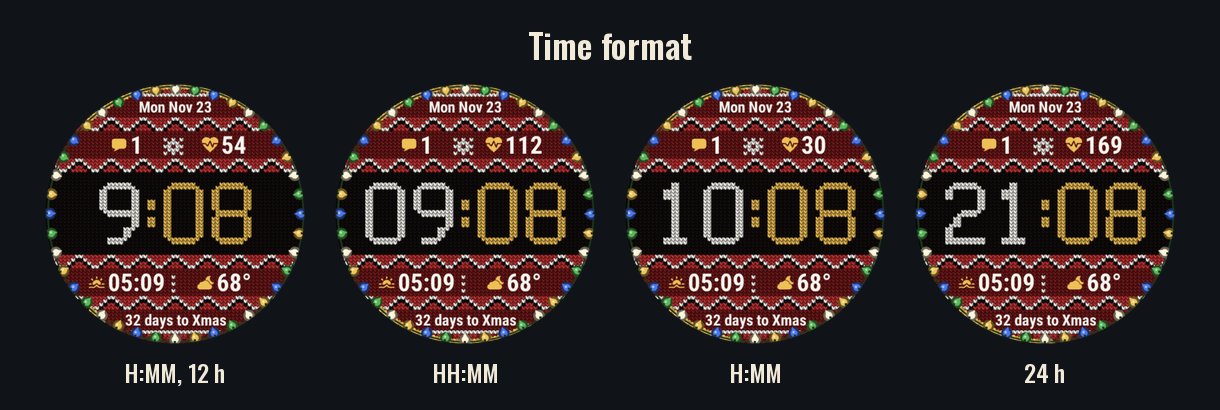
- Font: Classic or Bold. Select it to switch between the two.
- Hour Color, Minute Color: the yarn of the hour and of the minute. The colon has the Minute Color.
- 24 Hour: the 24 hour clock, or 12 hours.
- Leading Zero: 09:08 with it, 9:08 without it.
Both fonts are knitted, stitch by stitch, on the time panel. Classic is a pixel font with thin strokes. Bold has thick strokes, like the digits of a digital clock.
The minute always has 2 digits. Without the leading zero, an hour of 1 digit makes the line shorter (H:MM), and it sits in the middle of the screen. At 10 o'clock it grows to HH:MM again.
The texts of the fields use the fonts of your watch: the Value Font (the fields in a band of 1 or 2) and the Label Font (the date, the countdown, a band of 3, and a value that is too wide). Change them in Advanced options → Fonts. See Fonts. The Time Font is also in the settings on your phone.
Colors
This picture shows where each color is:
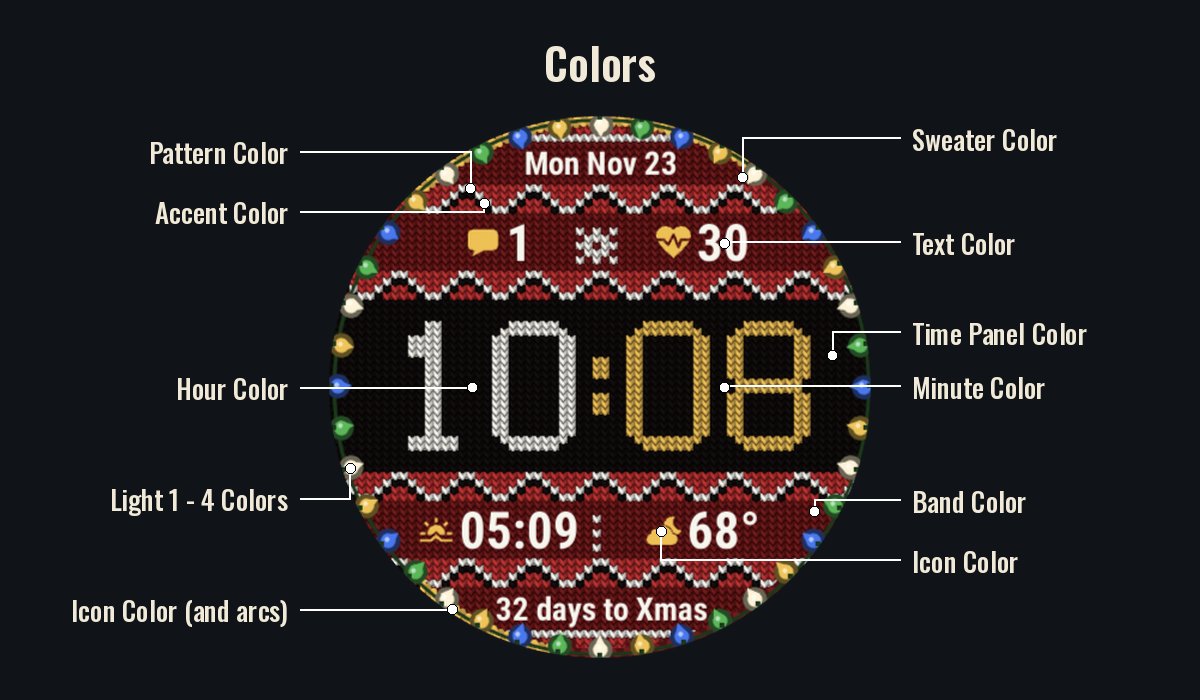
| Color | What it colors | Menu |
|---|---|---|
| Sweater Color | The yarn of the sweater. Its darkest shades are also the ribbed cuff and the unfilled part of the yarn arcs. | Sweater |
| Pattern Color | The motif of the border, and the frames and dividers of the bands. | Sweater |
| Accent Color | The second color of the border. It is also the frame and dividers of a band whose Band Color is about the same as the Pattern Color. | Sweater |
| Time Panel Color | The band behind the time. | Sweater |
| Band Color | The date band, the two data bands and the countdown band. | Sweater |
| Light 1 Color to Light 4 Color | The bulbs of the Christmas lights, in turn along the string. In the menu only with the lights on. | Sweater |
| Hour Color, Minute Color | The knitted hour and minute. The colon has the Minute Color. | Time options |
| Text Color | The values of the fields, the date and the countdown. | Colors |
| Icon Color | The icons of the fields and the filled part of the yarn arcs. | Colors |
| AOD Time Color | AMOLED only: the time on the always-on display. White keeps the Hour and Minute Color. | Always-On Display |
| Background Color | Not used: the sweater, or the black background, covers the screen. Only in the list on MIP watches. | Colors |
The yarns and their shades
You pick one color per yarn. The watchface works out the darker shades of that color for the stitches itself, so the knit looks real in any color: 4 shades on AMOLED, 2 on MIP.
The menu column says where you find a color. Advanced options → Colors also has every color in one list. See Colors for how to pick or type a color.
Themes
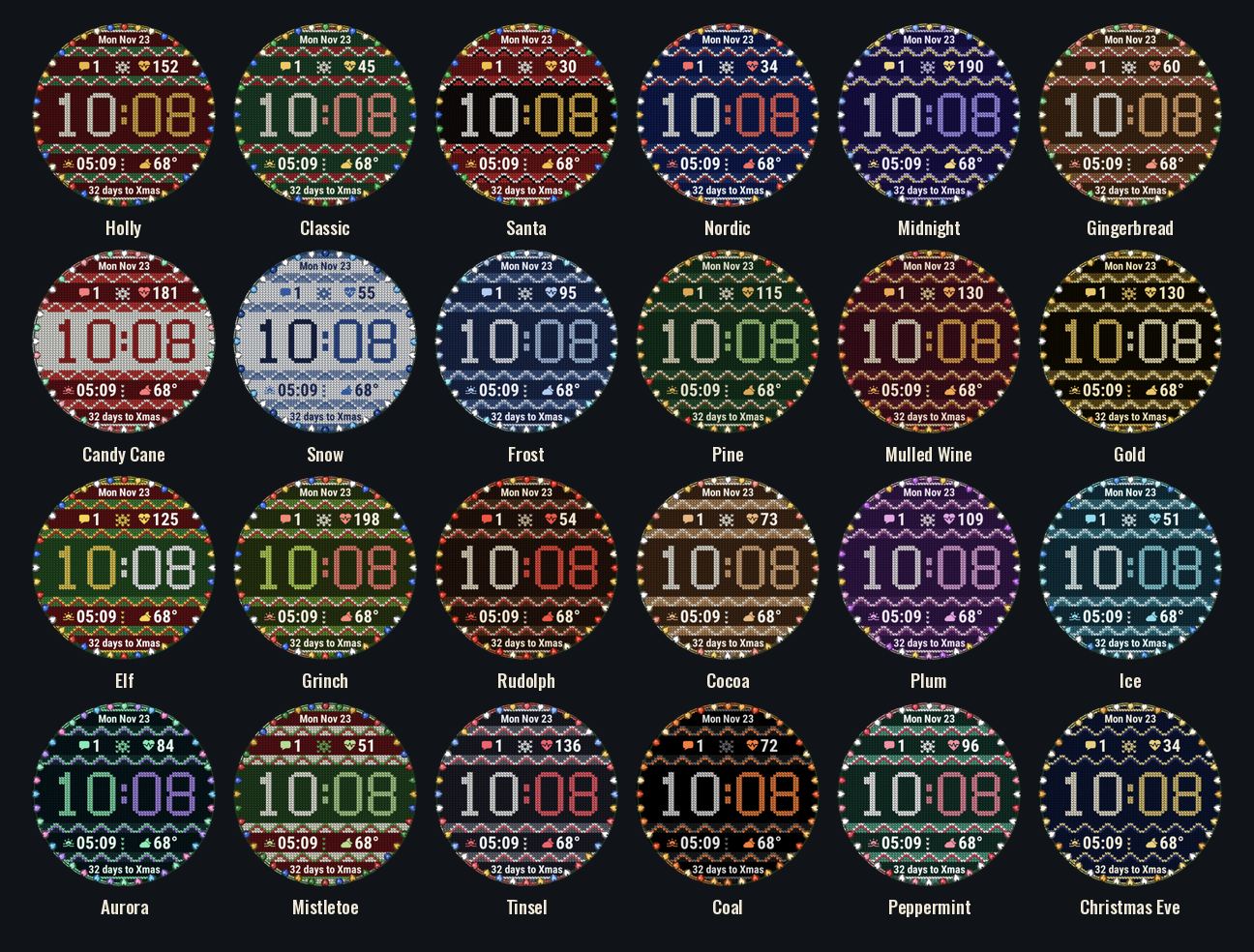
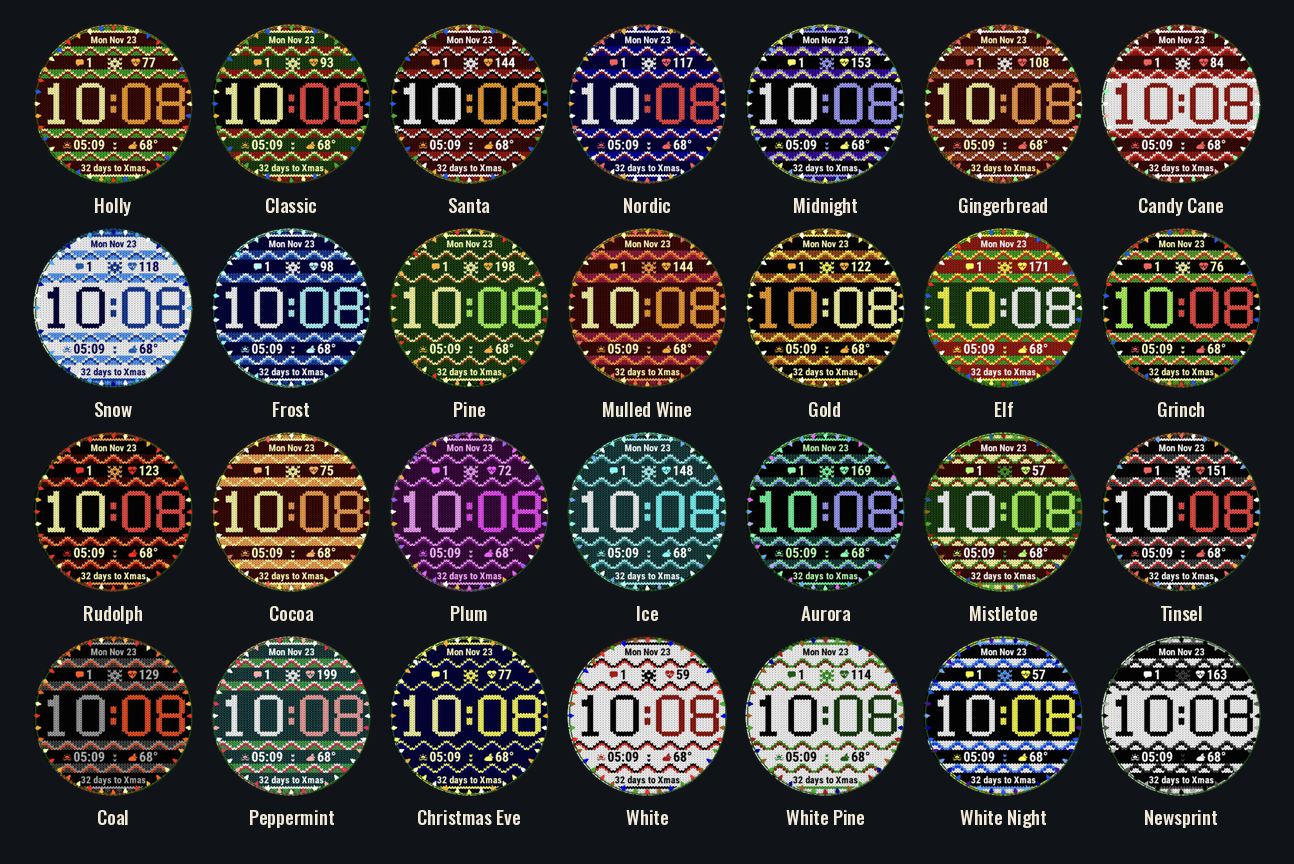
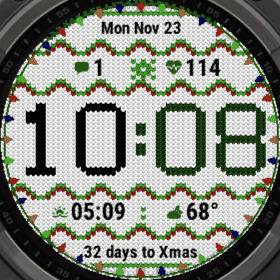
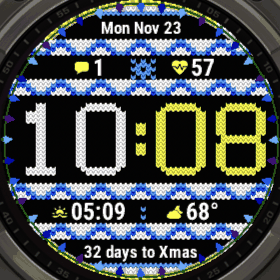
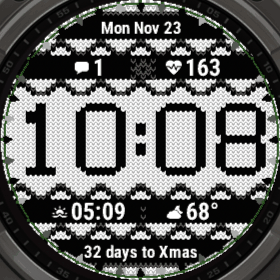
AMOLED watches have 24 themes, one for every day of Advent. MIP watches have the same 24, made for a MIP screen, plus 4 with high contrast on a white sweater: White, White Pine, White Night and Newsprint. See all of them on the themes page.
Choose a theme in Themes in the settings, or as Theme on your phone. A theme sets all colors. It also sets the 4 bulb colors of the Christmas lights. Your data fields, the time font, the band design, the border, the divider, the lights mode and Sweater on or off stay as they are. So choose your theme first, then change what you like.
The free version starts with the Santa theme, the PRO version with Nordic.
Can't decide? The last option in the theme picker, AI Gen, makes a new set of colors every time. On AMOLED it starts from Holly and picks new Icon, Minute, Sweater and Accent colors, with a dark Time Panel and Band Color. On MIP it starts from Tinsel, with its black panel and bands, and picks new Icon, Minute, Sweater and Accent colors. The text, the hour and the pattern stay light. It is also at the end of the Theme list on your phone, and you can put Generate AI Theme on a touch area.
See Themes for how themes work, and how to keep your own look.
MIP watches
Xmas Jumper looks the same on MIP and AMOLED watches, with a few differences:
- MIP screens have only 64 colors, so the MIP themes use those, and each yarn has 2 shades instead of 4. On a real MIP screen the colors look softer than in the pictures.
- The Christmas lights have no glow and no shine.
- MIP has its own 28 themes, including 4 on a white sweater.
- There is no Always-On Display menu and no AOD Time Color: a MIP screen is always on.
- Watches without scalable fonts, such as the Forerunner 255, use the system fonts of the watch, so the texts can look a little different.
Always-On Display, AMOLED watches
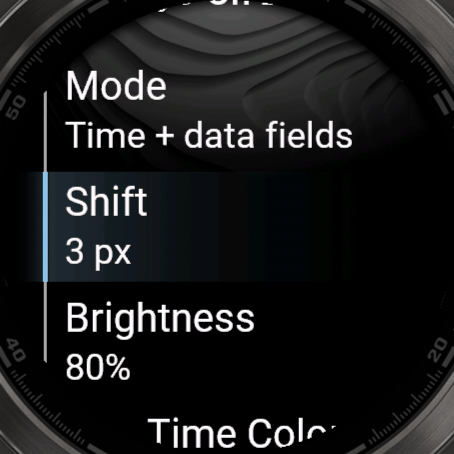
Find these in Advanced options → Always-On Display. The AOD Mode and AOD Brightness are also in the settings on your phone.
- Mode: what stays on the screen, see below.
- Shift: Off, or a number of pixels. Moves the screen a little now and then to prevent burn-in.
- Brightness: how bright the time and your data are, in steps of 10%. 80% by default.
- Time Color: the AOD Time Color. White keeps the Hour and Minute Color. Any other color makes the whole time that color.
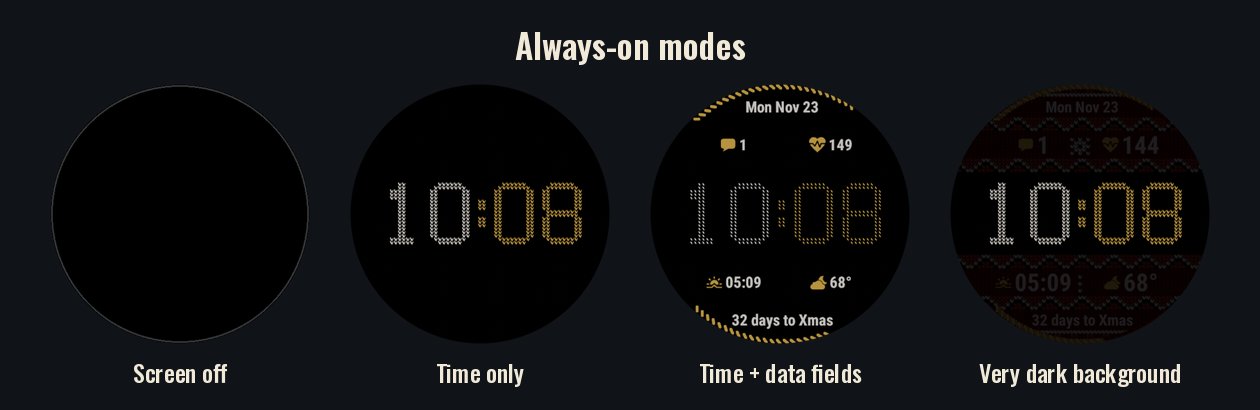
The modes
| Mode | What you see |
|---|---|
| Screen off | Nothing. The screen is off until you raise your wrist. |
| Time only | Only the knitted time, on black. |
| Time + data fields | The default. The time and your data on black, without the sweater and the bands: the icons and values of all fields, the date, the countdown and the filled part of the yarn arcs. The values use the Hour Color. |
| Very dark background | The whole watchface, sweater and all, very dark, with the time over it. |
Burn-in
Garmin limits how much of the screen may be lit on the always-on display, to protect the AMOLED screen from burn-in. See Always-On Display for how that works. Time only lights the least. The Bold font with 3 fields in both bands lights the most of Time + data fields: if your watch turns the always-on display off or dims it, use the Classic font, fewer fields, a lower brightness or Time only.
Touch areas
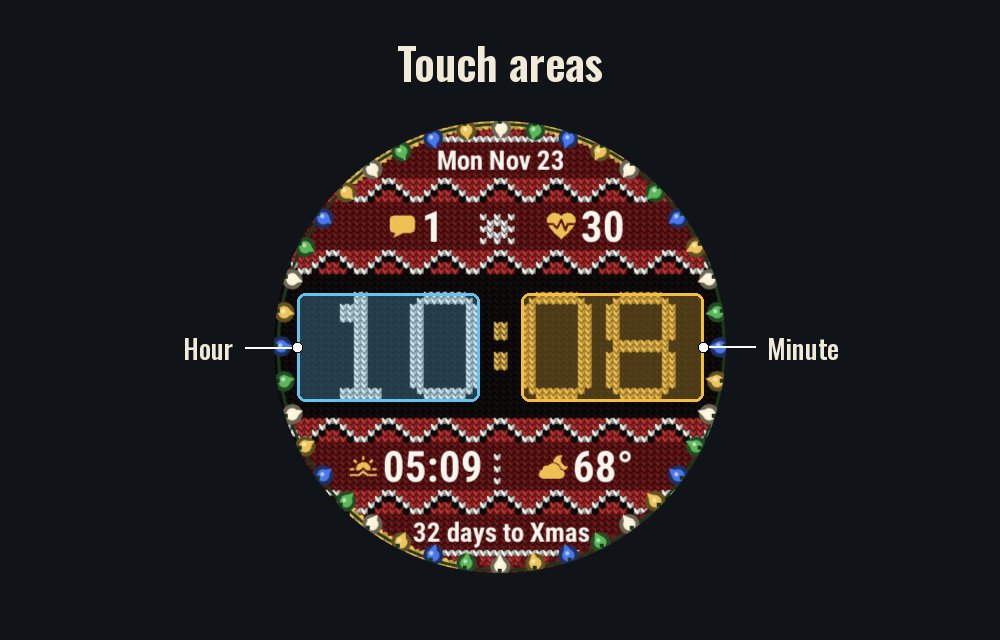
On a watch with a touch screen, every field can open a shortcut. This watchface also has 2 touch areas of its own: Hour (the left half of the time) and Minute (the right half), each from the digits out to the edge of the screen.
Set them in Advanced options → Touch options. A shortcut can, for example, load the next profile, switch to the next theme, make a new AI theme, refresh your data, or open an app on your watch such as Heart Rate, Weather or Body Battery. See Touch & Shortcuts for how to set them up.
The phone settings have a TOUCH section too: Touch (On or Off) and the shortcut of Hour and Minute. See Settings on your phone.
Touch shortcuts need PRO. In the free version you can try them for an hour.
Settings on your phone
In the Connect IQ app, choose My Device → Watch Faces → Xmas Jumper → Settings. You find the basics there, and everything else stays on the watch. How it all works is explained in Settings on Your Phone.
From top to bottom:
| Setting | What it does |
|---|---|
| Pro Code | Only in the free version. Activates PRO, and shows its status. |
| Theme | Applies one of the themes of your watch, or Generate AI Theme for a new random one. |
| Currently loaded profile, Load Profile | Shows the active profile, and loads another one. |
| Time Font | Classic or Bold. |
| Sweater | On, or Off, black background. |
| Band | The band design: Classic, Lines or Stitched. |
| Border | Plain, Zigzag, Crosses, Checks, Hearts, Trees, Candy Canes, Stockings, Santa, Rudolph or Presents. |
| Divider | Dotted, Snowflake, Star, Heart or Tree. |
| Christmas Lights | Off, Steady or Walking. |
| Top Band Fields, Bottom Band Fields | 1, 2 or 3 fields in the band. |
| Top Band Dividers, Bottom Band Dividers | On or Off. |
| AOD Mode | AMOLED only: Screen off, Time only, Time + data fields or Very dark background. |
| AOD Brightness | AMOLED only: 10% to 100%. |
| DATA FIELDS | Every field from the table in Data fields: Top, Top 1 to 3, Bottom 1 to 3, Bottom, Top Arc and Bottom Arc. The fields of the two bands also have their label (the icon). The arcs only list data that can show progress. |
| FONTS | The Value Font and the Label Font, and their size on a watch with scalable fonts. |
| COLORS | Every color from the Colors table. The Background Color is only there on MIP watches, the AOD Time Color only on AMOLED. |
| TOUCH | Only on a watch with a touch screen. Touch (On or Off, needs PRO) and the shortcut of the Hour and Minute touch areas. |
| PLUGIN FIELDS | Plugin 1 Field to Plugin 5 Field, the plugin data you can pick in a field. |
| Custom Text | The text of your Custom Text field. |
- Every option of this watchface starts at As on watch (no change): saving leaves it as your watch has it. Only what you change is sent to the watch.
- A theme is applied last. So when you choose a theme and change a color in the same save, the theme wins.
- Still on the watch only: the field options, the AOD Shift and Time Color, the 24 hour and leading zero settings and the Instinct Crossover hand highlights.
- The phone shows what the watch last sent. After changing something on the watch, go back to the watchface before you open the settings on your phone.
Instinct Crossover
The Instinct Crossover AMOLED has real, physical hands, which move over the knitted jumper and can cross the time. The watchface can draw a highlight on those hands, so they stand out against the screen. Find it in Advanced options → Hand Highlights.
- Hand Style: the shape of the highlight, or No Highlight. Fade-in, solid, Top Only, and 30% transparent versions, each in small, medium and large.
- Second Hand: No Second Hand, Fade-in or Solid.
- AOD Style: the highlight on the always-on display: No Highlight, Keep as is, Green, Red or Blue Lume, Custom Color, 40% darker or 60% darker.
- Minute Color, Hour Color, Second Hand Color: the colors of the highlights. These are their own settings, a theme doesn't change them.
- AOD Custom Color: only with AOD Style set to Custom Color.
The highlights are saved per profile.
Supported watches
Xmas Jumper runs on 67 Garmin watches with Connect IQ 5.0.1 or newer, AMOLED and MIP:
- Approach: S50, S70 42mm / 47mm, S72 43mm / 47mm
- D2: Mach 1, Mach 1 Pro, Mach 2, Mach 2 Pro, Air X15
- Descent: G2, Mk3 43mm / Mk3i 43mm, Mk3i 51mm
- Enduro: 2, 3, 4
- epix: (Gen 2), Pro (Gen 2) 42mm / 47mm / 51mm
- fēnix: 7, 7S, 7X, 7 Pro, 7S Pro, 7X Pro (also Solar Edition without Wi-Fi), 8 43mm / 47mm / 51mm, 8 Solar 47mm / 51mm, 8 Pro, 9 43mm / 47mm / 51mm, 9 Pro 43mm / 47mm / 51mm, 9 Pro Solar 47mm / 51mm, E
- Forerunner: 70, 165, 165 Music, 170, 170 Music, 255, 255 Music, 255s, 255s Music, 265, 265s, 570 42mm / 47mm, 955 / Solar, 965, 970
- Instinct: 3 AMOLED 45mm / 50mm, Crossover AMOLED
- MARQ: (Gen 2) all editions, (Gen 2) Aviator, (Gen 3)
- quatix: 7, 7X Solar, 7 Sapphire, 7 Pro, 8, 8 Pro
- tactix: 7, 7 AMOLED Edition, 8, 8 Solar
- Venu: 3, 3S, 4 41mm / 45mm, X1
- vívoactive: 5, 6
Watches with Connect IQ 5.0.0, such as the Venu 2, Venu 2 Plus, Venu 2S and Venu Sq 2, don't have enough memory for the knitted art, so Xmas Jumper isn't available for them. The Connect IQ store shows whether your watch is supported.
Free and PRO
Every theme, band design, border, divider, font and color is in the free version, and so is the Days to Christmas field. The PRO version from the Connect IQ store is fully unlocked. In the Free version, these need PRO:
- Data fields marked [PRO]. You can try one for an hour, then it shows PRO instead of its value.
- Touch shortcuts. You can try them for an hour, starting with the first shortcut you use.
- More than 2 profiles
To activate the Free version, open Pro Status → Activate and enter your code, or enter it as the Pro Code in the settings on your phone. Your phone needs to be connected. See Free vs PRO & Activation, which also explains which version to choose.
Questions and troubleshooting
I chose a snowflake divider, but a band shows dots.
The motif needs room. A band with 3 fields, or with a wide value such as 04:58, gets the dotted line so the values keep their size. See Dividers.
Where is Top 3 or Bottom 3?
A band shows 2 fields by default. Set Top Band or Bottom Band to 3 fields in Advanced options → Fields, and the third field appears in the screen and in the menu.
A value is smaller than the others, or cut off.
A value that is too wide for its place is written in the smaller Label Font, and cut off if that is still too wide. Choose a shorter format in its Data Options, or give the band fewer fields.
The countdown says 42d instead of 42 days to Xmas.
The text is too long for the band on your watch, so the watchface shortens it. Make the Text behind Value shorter in the Data Options of the field.
I changed the theme, but the border and the band design stayed.
A theme only sets the colors. The band design, border, divider, time font and Sweater on or off are your own choices, in the Sweater menu and Time options.
A yarn arc stays empty, or I can't pick a field for it.
The arcs only show progress, so only data with a goal or a range can go on them, such as Battery, Body Battery or Steps.
I changed something on my phone and nothing happened.
The watchface has to be on your watch, and your watch connected to your phone. See I changed something on my phone and nothing happened.
The colors look different on my MIP watch.
MIP screens have only 64 colors and look softer than the pictures, which are simulator screenshots. The 4 white MIP themes have the highest contrast.
The Instinct Crossover hands cover the time.
The hands are real, so they move over the screen. Set a Hand Highlight to make them easy to read, see Instinct Crossover.
Something else? See Troubleshooting.
More documentation
This manual only covers what is specific to Xmas Jumper. The settings system works the same on every watchface with its settings on the watch, and the On-Watch Settings documentation explains all of it. For example:
- Settings Menu Map: everything in the settings menu, in one overview
- All Datafields: every field you can pick, with a search box
- Alternative Times: show the time in another city in any field
- Refresh Time: how often a field updates, and how that saves battery
- Custom Date & Time Formats: show the date or time exactly the way you want
- Goals & Progress Bars: set your own goal for an arc
- Labels, Colors & Offsets: change the icon, color or position of a single field
- Profiles: save different setups and switch between them
- Themes: how themes work, and how to keep your own look
- Colors: change any color, or type an exact one
- Fonts: this watchface has a Value Font and a Label Font
- Touch & Shortcuts: open things with a touch on your watchface
- Plugins: more data with OWM Weather GB, YR Weather GB, CGM+ and Tides GB
- Data From Other Apps: show values from apps that support complications
- Troubleshooting: what to do when something doesn't work
Have a question? See the Frequently Asked Questions.