Nightscout - Installation & Setup
Follow these three simple steps to get the CGM+ App up and running on your Garmin device.
⚡ Quick Setup Guide
Get Nightscout URL
- • Have your Nightscout URL ready
- • Generate a new subject under Admin Tools with "readable" role
- • Copy the access token
Configure App
- • Open Garmin Connect IQ
- • Find app in My Devices
- • Enter Nightscout URL
- • Enter Access Token (if required)
⏱️ Total time: 5-10 minutes • 📖 See detailed steps below
Step 1: Install the CGM App
- Open the Garmin Connect IQ Store on your phone or visit apps.garmin.com
- Search for "CGM+ GB"
- Tap Download or Install
- Wait for the app to sync to your Garmin device (this may take a few minutes)
Note: Make sure your Garmin device is connected to your phone via Bluetooth and the Garmin Connect app is running during installation. If the installation gets stuck, restart the Garmin IQ app on your phone.
Step 2: Prepare Your Nightscout Information
The CGM+ App connects directly to your Nightscout site to fetch your glucose data. You'll need your Nightscout URL and optionally your API secret.
What You Need
-
Nightscout URL: Your complete Nightscout site address
Example:
https://yourname.herokuapp.comorhttps://yourname.fly.dev -
Access Token: An access token that can be generated under Admin Tools
You can use your admin api token, but I recommend creating a "Subject" under Admin-Tools. This creates an access token just for this app with read-only access
Generating Your Access Token
To securely connect the app to your Nightscout site, create an access token:
- Log in to your Nightscout site
- Click on the hamburger menu (three horizontal lines) in the top right
- Navigate to Admin Tools
- Go to Subjects - People, Devices, etc
- Click Add new Subject (or similar button)
- Give it a name like "Garmin Watch" or "CGM App"
- Assign the readable role (at minimum)
- Click Save
- Click on the access token to view the full token
- Copy this token - you'll need to enter it in the app settings
💡 Tip: Each subject has a unique access token that can be shared. Using tokens instead of your main API_SECRET is more secure and allows you to revoke access for specific devices if needed.
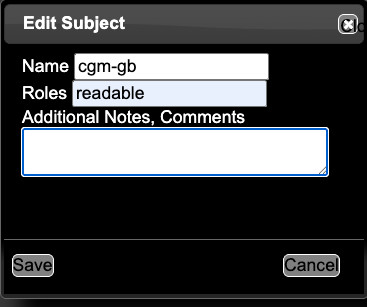
Creating a new subject with access token
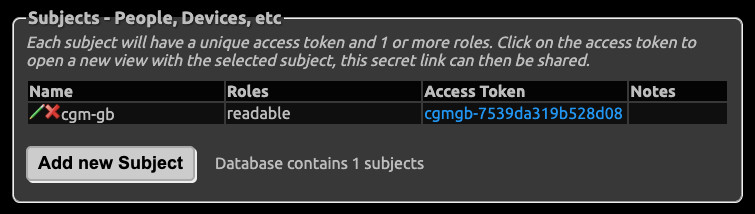
Copy the access token in the settings
Step 3: Enter Your Nightscout Information in the CGM+ GB settings
Now you need to configure the CGM+ app with your Nightscout site information.
- Open the Garmin Connect IQ app on your phone
- Tap My Devices at the bottom
- Select your Garmin watch from the list
- Tap Apps
- Find and tap CGM+ GB
- Tap Settings
- Select Nightscout under "CGM System"
- Enter your URL in the Username / URL field
- Include the full URL:
https://yourname.herokuapp.com - Do NOT include /api/v1 or any path - just the base URL
- Make sure it starts with
https://
- Include the full URL:
- Enter your API Secret (if required)
- Leave blank if your Nightscout site is publicly readable
- Enter your Access Token if authentication is required
- Tap Save
- Sync your settings to your watch by pulling down to refresh in Garmin Connect
✓ Success! Once configured, the app will automatically connect to your Nightscout site and start displaying your glucose data
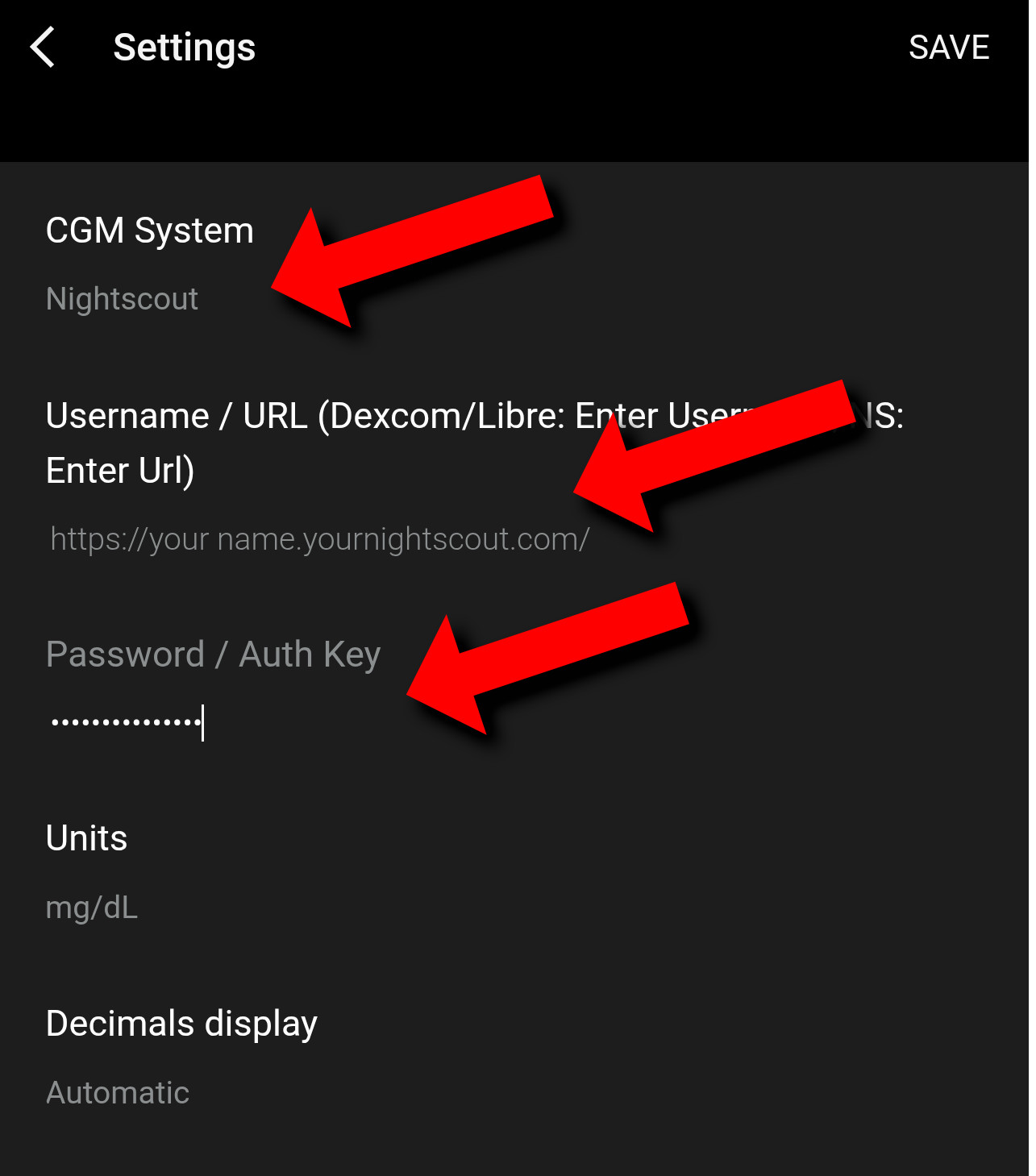
Nightscout configuration in the app settings
Troubleshooting
If you're not seeing glucose data after 10 minutes:
- Verify your Nightscout URL is correct (including https://)
- Check that your Nightscout site is online and accessible in a browser
- If using API secret, double-check it matches your Nightscout configuration
- Ensure your watch is connected to your phone via Bluetooth
- Make sure your phone has an active internet connection
- Check that your Nightscout site has recent data (within last 15 minutes)
- Try restarting the Garmin Connect app and re-syncing
See the Error Codes page for detailed troubleshooting steps.
Next Step: Learn how to display CGM data on your watchface.
⚠️ Important Disclaimer
- NOT FOR MEDICAL DECISIONS: This app is for informational purposes only and should NOT be used to make medical decisions.
- Always verify readings: Confirm glucose values with your official Dexcom receiver or app before taking action.
- Emergency situations: In case of extreme glucose levels or medical emergencies, use your primary CGM device.
- Delayed data: Readings may be delayed by several minutes due to how often the app can sync.
- No liability: The developer assumes no responsibility for health outcomes related to the use of this app.
- Not affiliated: This app is not approved by, endorsed by, or affiliated with Dexcom, Abbott (Libre), or any other medical device company.