Display CGM Data on Your Watchface
Once the CGM+ App is installed and configured, you can display your glucose data on compatible watchfaces. All my watchfaces here on watchface.io support CGM datafields.
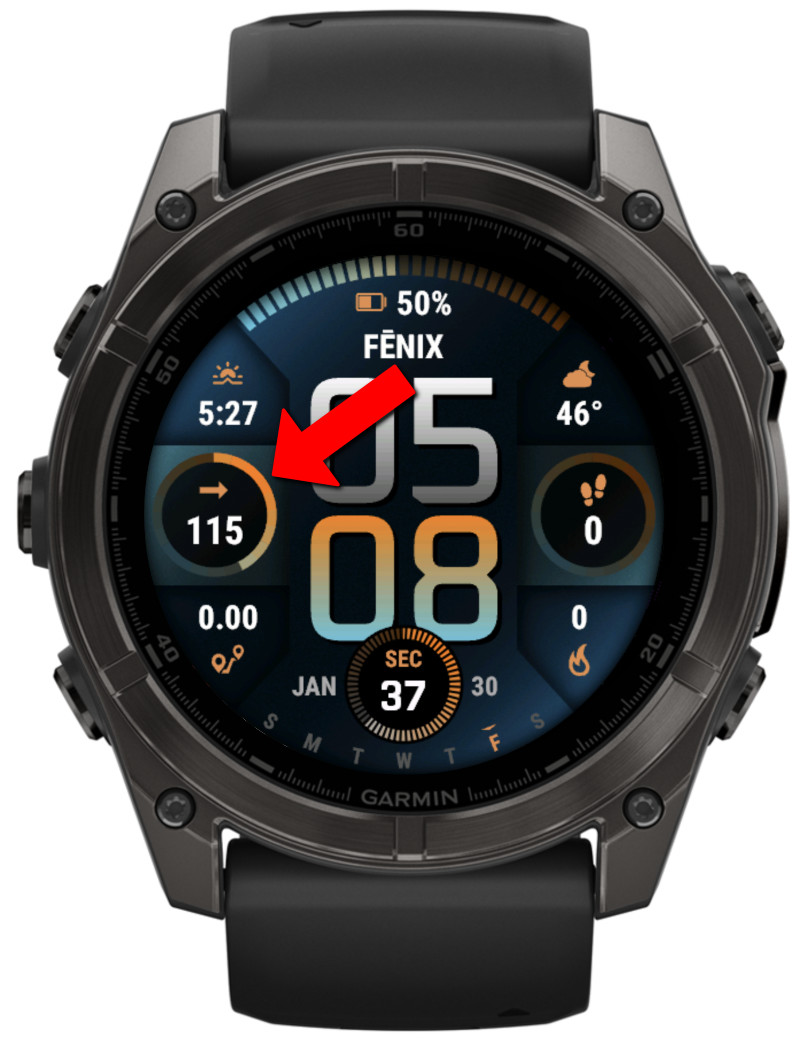
Example of CGM data displayed on a watchface
Configure CGM Datafields
- Open the Garmin Connect IQ app
- Go to My Devices → Select your watch
- Tap Watch Faces
- Select the watchface you want to configure
- Tap Settings
- Navigate to a datafield position (e.g., "Top Field", "Bottom Left", etc.)
- Scroll through the datafield options and select one of the CGM options:
- CGM+ GB (Dexcom, Libre, Nightscout, xDrip): Shows current glucose reading with trend arrow and with progress as defined in the app
- CGM - Other: Shows current glucose reading, with progress as defined in the watchface settings (Use as alternative when the first option is not available)
- Repeat for other datafield positions if desired
- Tap Save and sync to your watch
⚠️ Important Disclaimer
- NOT FOR MEDICAL DECISIONS: This app is for informational purposes only and should NOT be used to make medical decisions.
- Always verify readings: Confirm glucose values with your official Dexcom receiver or app before taking action.
- Emergency situations: In case of extreme glucose levels or medical emergencies, use your primary CGM device.
- Delayed data: Readings may be delayed by several minutes due to how often the app can sync.
- No liability: The developer assumes no responsibility for health outcomes related to the use of this app.
- Not affiliated: This app is not approved by, endorsed by, or affiliated with Dexcom, Abbott (Libre), or any other medical device company.