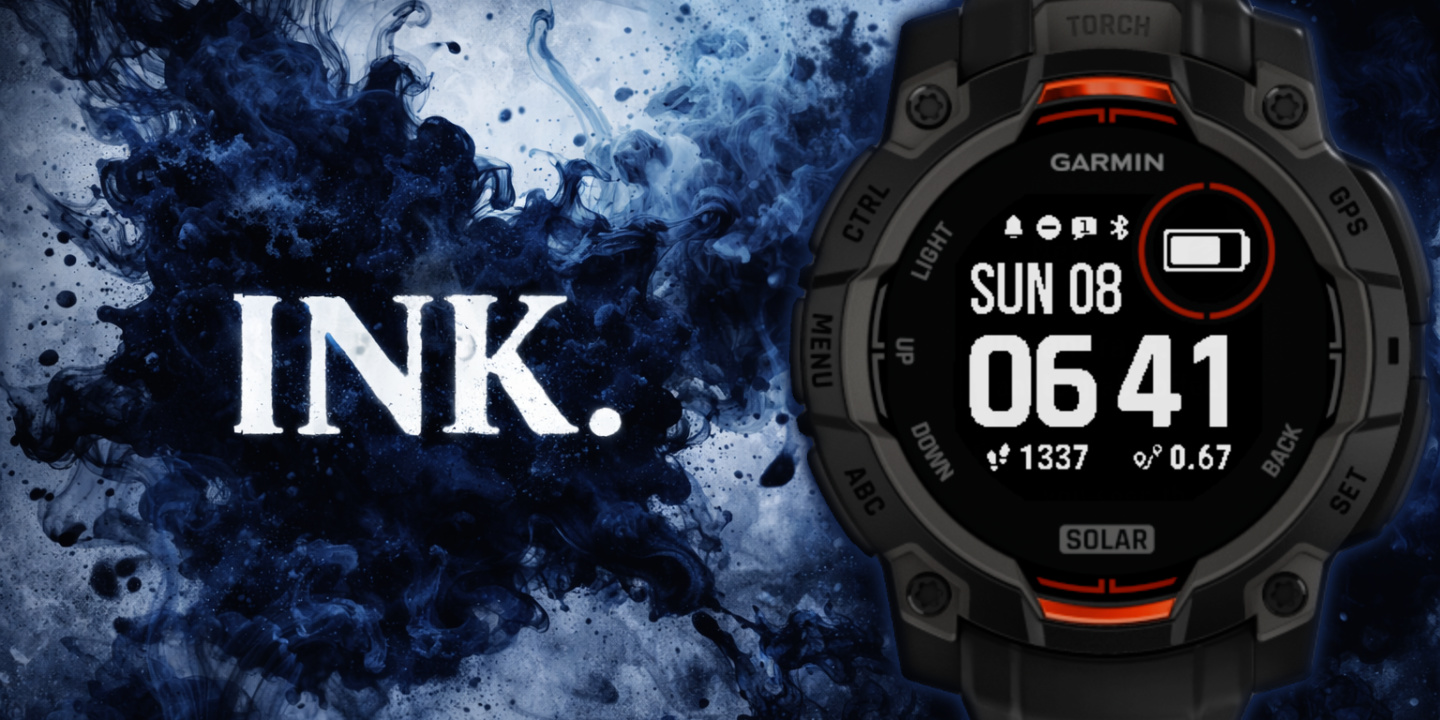
Ink
Download Options
 Free Version
Purchase Watchface - $3.99






Ink - GB - Manual
Field names
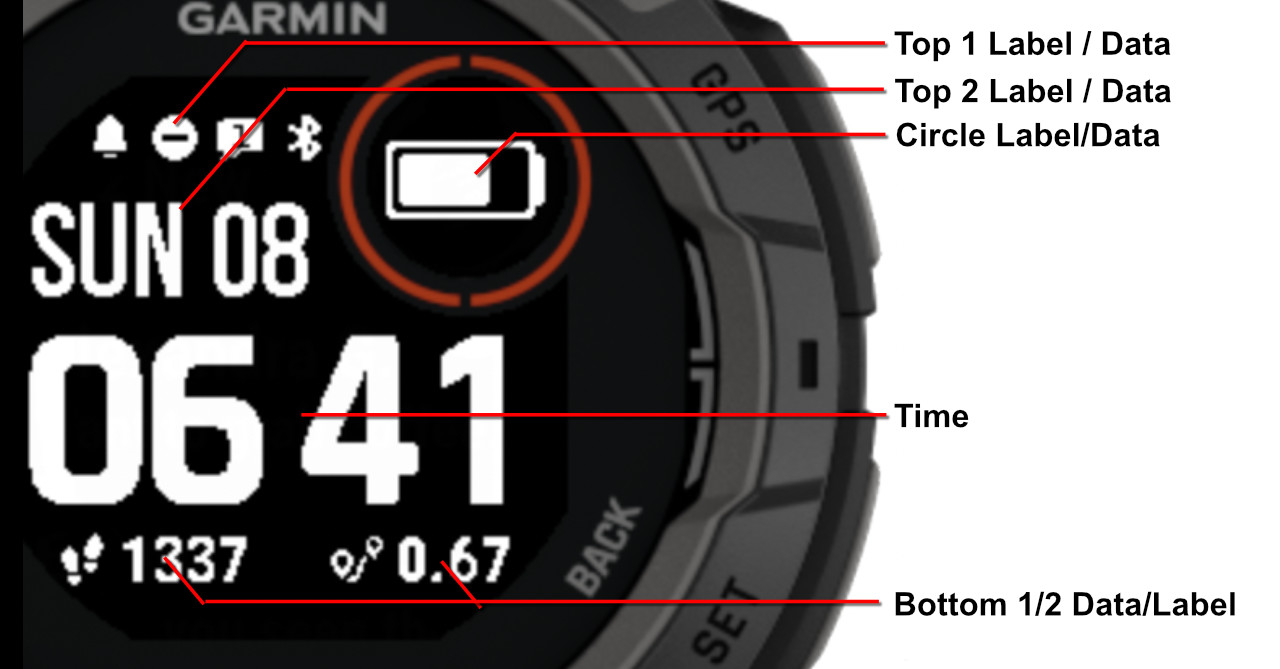
Table of Contents
Supported Fonts
This watchface supports multiple font styles for customizing the time display. Choose the font that best matches your personal style.
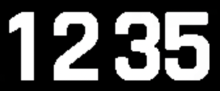
Bionic (Default)

7 Segment (PRO only)
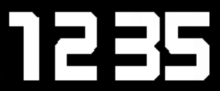
Barlow (PRO only)
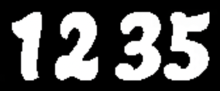
Lemon (PRO only)
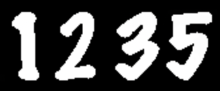
Marker (PRO only)
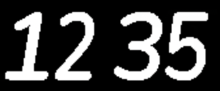
Nunito (PRO only)
Offsets
The watchface allows you to customize the positioning of all data fields, circle elements, and the time display. Use the X and Y offset settings to move elements horizontally and vertically to achieve your desired layout.
Understanding Offsets
How offsets work:
- • X Offsets: Positive values move elements to the right, negative values move them left
- • Y Offsets: Positive values move elements down, negative values move them up
- • Default value for all offsets is 20
- • Each element can be adjusted independently
Settings
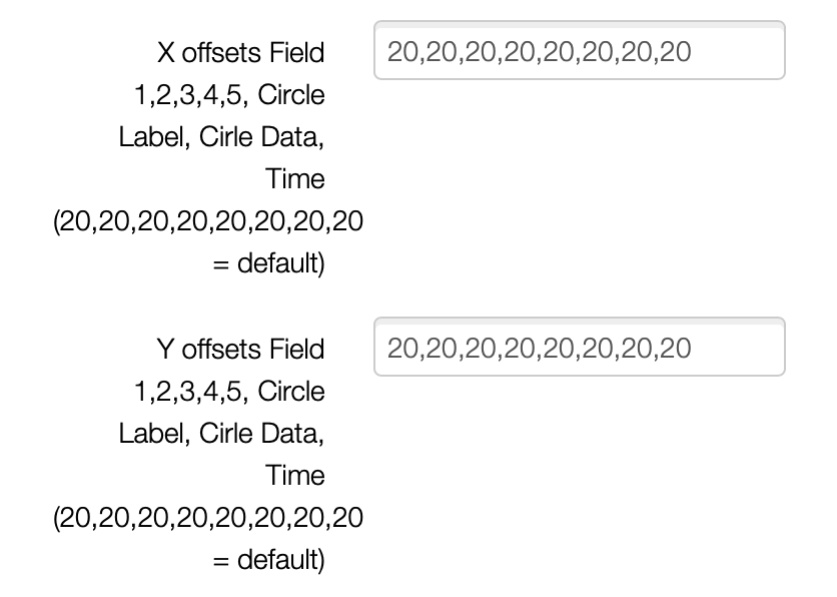
Offset Settings
X Offsets Field 1,2,3,4,5, Circle Label, Circle Data, Time
Controls horizontal positioning for each element. Enter 8 comma-separated values to adjust each field independently.
Default: 20,20,20,20,20,20,20,20
Example: 15,20,25,20,20,20,20,20 - Moves Field 1 left and Field 3 right
Y Offsets Field 1,2,3,4,5, Circle Label, Circle Data, Time
Controls vertical positioning for each element. Enter 8 comma-separated values to adjust each field independently.
Default: 20,20,20,20,20,20,20,20
Example: 20,25,20,30,20,15,15,20 - Adjusts vertical spacing for multiple fields
Tips for Adjusting Offsets
- • Start with small adjustments (±5) and test to see the effect
- • Make sure all 8 values are provided, separated by commas
- • Keep the order: Field 1, Field 2, Field 3, Field 4, Field 5, Circle Label, Circle Data, Time
- • Use negative values if you need to move elements in the opposite direction
- • Remember: changes sync to your watch after saving settings in Garmin Connect