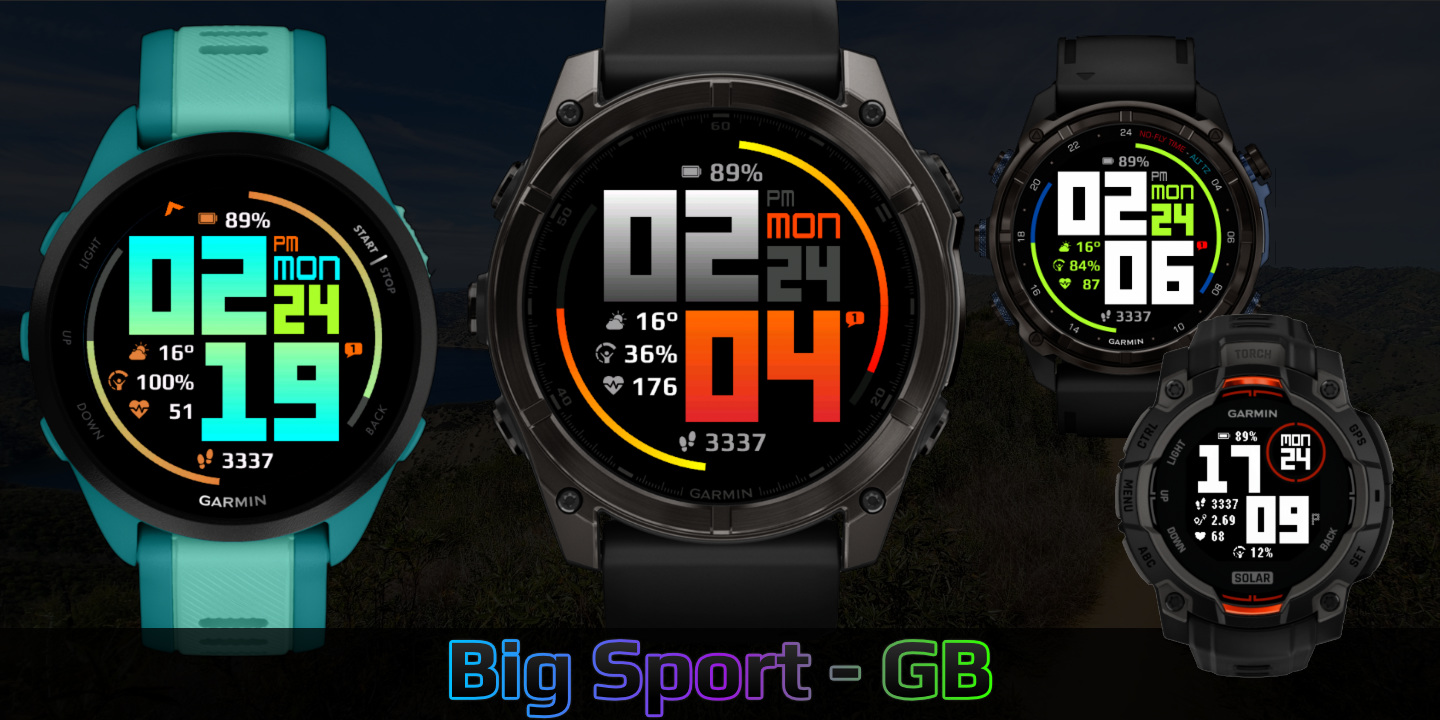
Big Sport
Download Options
 Free Version
Purchase Watchface - $3.99






Big Sport - GB - Manual
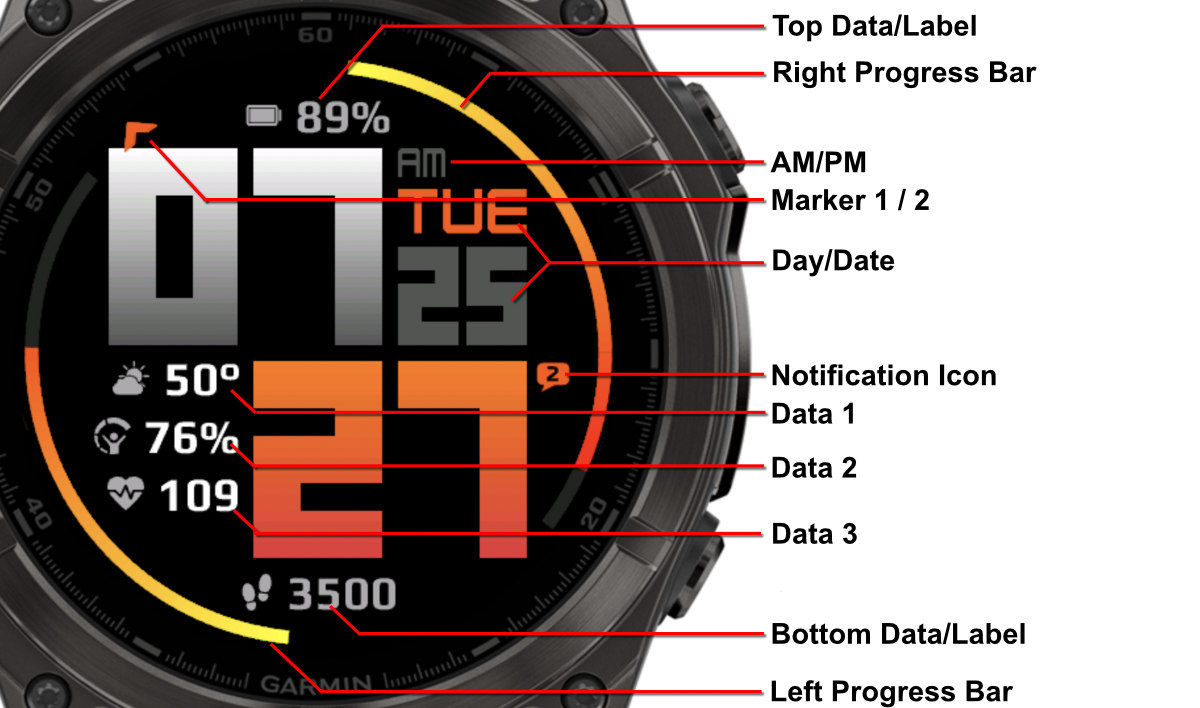
Field names
Offsets
The watchface allows you to customize the spacing and positioning of time elements and data fields independently using offset settings. This gives you fine control over the layout to match your preferences.
Offset Settings
Field X Offsets
Controls horizontal positioning for Top, Data 1, Data 2, Data 3, Bottom.
Default: 20,20,20,20,20
Field Y Offsets
Controls vertical positioning for Top, Data 1, Data 2, Data 3, Bottom.
Default: 20,20,20,20,20
Hour First Digit Color
You can customize the color of the first digit in the hour display. This gives you three different styling options for creative visual effects and improved readability.
Available Options
Regular Hour Colors
All hour digits use the same color. This is the standard display mode.
Different Color for Leading Zero
Only the leading zero (0) gets a different color. Example: 09:30 or 01:45. When the first digit is not zero, it uses the regular hour color.
Different Color for First Digit
The first hour digit always gets a different color, regardless of whether it's zero or not. Example: 09:30, 12:45, or 23:15.
💡 After selecting your preferred option, use the options "Hour Color First Digit 1" and "Hour Color First Digit 2" to choose the custom color for the first digit or leading zero.
⚠️ MIP Gradient Note: When using MIP gradient colors for the hour display, the first digit color can only be a MIP gradient color if the rest of the hour is also using MIP gradient. Mixing MIP gradient with regular colors will revert to the standard gradient method.
Battery Optimization
This watchface is fully optimized for all supported devices. For optimal battery life, use the AOD option "Time Only" with a tint color for best results.
To maximize battery efficiency, minimize frequently updating fields such as seconds, heart rate, and stress.
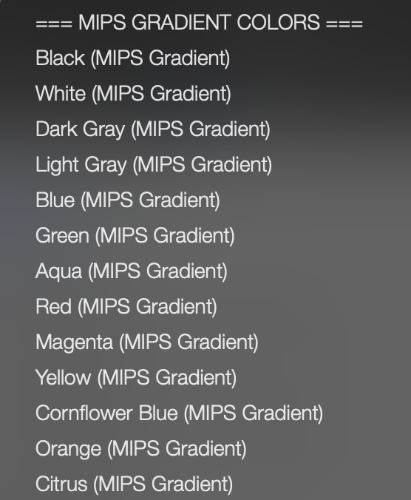
What is MIP gradient and how do I set it?
MIP devices only have 64 colors that can be displayed. When trying to display a color that is in between colors, like in a gradient, the device will pick the color closest to one of the colors it is able to display, so instead of an actual gradient, it will jump between the colors that it can display.
Regular Gradient vs MIP Gradient
On this watchface, the default gradient will look like the first image when NOT using MIP gradient. You can clearly see the lines where one color ends and where the other starts. When using one of the MIP gradient colors, the colors will be dithered, so it looks a lot better on a MIP device.
Regular Gradient on a MIP device. You can clearly see the jump between colors:
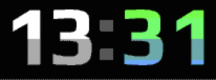
MIP Gradient. The dithering makes the transition between colors smoother:
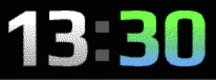
You can find the MIP gradient colors all the way on top of the Color list. You can combine any of the MIP gradient colors together. When mixed with a regular color, it will use the default gradient method instead.